Free Facebook Timeline cover images

Since the launch of Facebook Timeline, we all look for good Timeline cover images. First of all, one needs to check the size of that image, and we all know it is 800 x 315 pixels. Then we all look for good photos / images that fit this size to download. The trouble is, an 800 x 315 pixels image may or may not be a good image to use. Reason being Facebook will automatically scroll up the Timeline a little bit after a few seconds. And in turn only 800 x 200 pixels of the cover image is shown.

So, here you go, 8 free Facebook Timeline cover images that look good not only in full resolution, but also after the Timeline scrolled up. All these photo images are free because all are taken by me. Check it out, download, enjoy and hope you all like those !!

Manage your social media sharing with Buffer

Same as many of you, everyday (especially in the morning) I read lots of Internet news, blog posts, and tweets. If I find any good ones, I like to share it with my friends in Facebook and Google Circle; my followers in Twitter; as well as my peers in Linkedin. With so many to share and so many different social media networks as the destinations, it is not easy to manage this task. For examples:

  1. I need to log-in to these websites one by one to post. Yes, there are some utilities to help out but none of those are really intuitive;
  2. If I post all the morning stuffs in one go, it not only annoys all my friends and followers; but all my posts also will disappear in my friends’ wall easily;
  3. Browser is no longer the primary way to read / share news, therefore there is a need to share also directly from apps like Flipboard and Zite;

Then I came across a very neat solution – the Buffer. Buffer let you first, with a centralized dashboard, create a queue for each of your social networks. And then you can create posts to put into those queues.

Then those posts in the queue will be posted orderly to the designated social network automatically according to a sending schedule. For example in the following screen you will find that I have created four sending times for my Linkedin network.

These two features alone, have solved the first two issues above. The next problem to solve is how to share your posts from other apps. Buffer created Chrome Extension, Safari Bookmarklet (for your iPad and iPhone) and even a special secret email address such that you can send your post to the queues via email.

Lastly, Buffer even includes an analytic screen to let you see how your posts perform – e.g. number of click-thru and retweets etc.

All in all, it is a very good tool to manage your sharings. If you are serious about social media sharing, I suggest you to give Buffer a try and it is the best solution for now.

From Kindle 2 to Kindle Touch (Kindle 4)

I seldom upgrade my gears even the gears’ new version / generation are released, instead I always skip one generation between each upgrade. That applies to my M4/3 cameras, iPhone, iPad and of course the Kindle as well. My previous Kindle is a white color Kindle 2, and I skipped the very good Kindle 3 (now the Kindle Keyboard) but waited for the Kindle Touch. So, the day Amazon made the Kindle Touch available to customers outside US like us, I ordered the fourth generation Kindle and the Lighted Leather Cover

Kindle 2 and Kindle Touch

Without a keyboard like Kindle 2 / 3, the Kindle Touch is very small and lightweight. And with the same reason, you need to touch the screen to turn pages and change any settings … quite frankly touching the screen to action is not as easy as pressing a button in previous Kindle verions. However the E Ink display is still very good for reading.

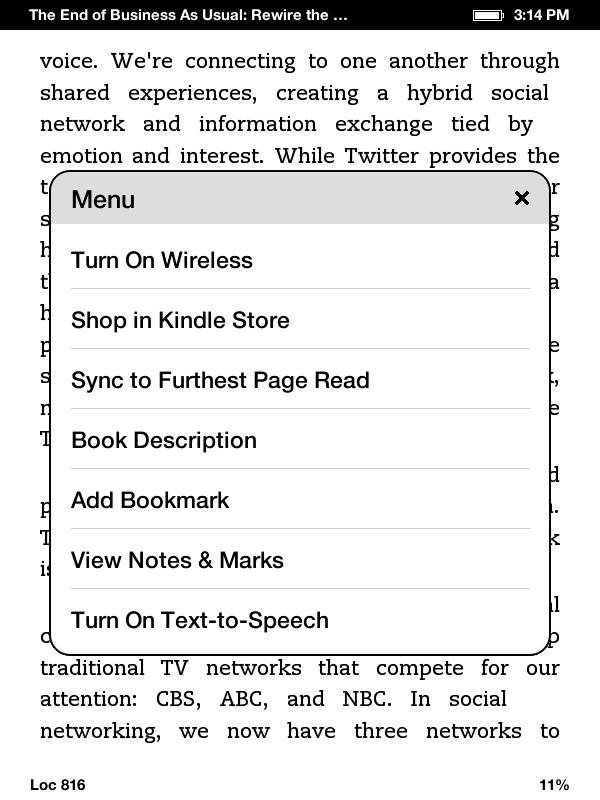
One thing I note from this latest Kindle is the menu options will change depends on what you’re doing – for example, the menu in the main homepage is different with the one while you’re reading and in the Settings screen. Anyway, first few things you need to do after you receive your Kindle Touch:

  1. From the home screen (the book list screen), press the Menu button in upper right, and turn on the Wi-Fi (“Turn On Wireless” option). If needed, in the same menu, select “Settings” and use the “Wi-Fi Networks” option to connect to the right Wi-Fi Access point.
  2. Then register your Kindle with the “Registration” option in the “Settings” screen.
  3. Set the password of the device, the time and personal information with the “Device Options” in the “Settings” screen.
  4. You can also set the social network through the “Reading Options”
  5. Once connected, and registered, go back to the home screen and you shall be able to download all the books to the new Kindle one by one.

I also tried the Kindle Shop (the shopping cart icon on top) and bought my first ebook for the new Kindle Touch – Likeable Social Media: How to Delight Your Customers, Create an Irresistible Brand, and Be Generally Amazing on Facebook (& Other Social Networks)

Lastly, in case you want to take some screenshots of Kindle like what I did for this blog post, all you need to do is to hold the home button for a while and then tap the screen. The screenshot in GIF format will be stored in the root directory of the Kindle where you can copy to your PC once connected via the USB cable. Hope it helps.

Enjoy !!

Organize your files and desktop around Dropbox

Following is a screenshot of my laptop at home (no kidding !!) and as you can see, there are only 5 icons in the Windows 7 desktop. How neat … In fact, my computer at work has the same desktop view.

This post is about how I organize my files to declutter the desktop, but more importantly, how to make it work around the Dropbox service (and any other cloud storage services or your private Internet accessible NAS). That basically makes all your important files accessible from Internet, whenever you want, and whereever you are.

Before we start the work, you need to answer yourself one question, that is “how many ways you want to access your files ?”. In my case, I have computers at work, at home and of course mobile devices like smartphone and tablet. Therefore, I can classify all the files I ever created into the following categories, in terms of access methods:

  1. I want to access files created from my home computer;
  2. I want to access files created from my office computer;
  3. I want to access files created from my mobile devices

If I further elaborate those access methods, I have a combination of:

A) Files and folders created by home computer,

i) access from home computer only;

ii) access from any computers;

B) Files and folders created by office computer,

i) access from office computer only;

ii) access from any computers;

C) Files and folders created by any computer,

i) access only from locally;

ii) access from any computer;

As you can see A (i), B(i) essentially are the same as C(i) in the cases of home and office computer, so in principle the access method of files and folders are:

  1. Files created by any computer but access only locally; (i.e. the computer that created the files)
  2. Files created by home computer and accessible by other computers;
  3. Files created by office computer and accessible by other computers, and;
  4. Files created anywhere, but accessible by other computers.

To make the above works, all I need is to create 4 folders, of which 3 of them are created in Dropbox. And they are:

  1. A folder names – “Desktop – Local“, this is a folder in each computer and stores the local created files / folders and will not share to any other computer and the Dropbox;
  2. A shortcut to a folder names – “Desktop – Home“. The folder is created in Dropbox. Files / folders that created by home computer but like to share with other computer shall store here;
  3. A shortcut to a folder names – “Desktop – Office“. The folder is created in Dropbox. Files / folders that created by office computer but like to share with other computer shall store here;
  4. A shortcut to a folder names – “Desktop – Virtual“. The folder is created in Dropbox. Files / folders that created by any computer but like to share with other computer shall store here.

Lastly, don’t forget to install the Dropbox software to your computer to synchronize all these folders. In summary, with this approach, I minimize all sorts of files and folders in all my computers. In addition, any files and folders that need to be shared are nicely organized and stored in the Cloud storage Dropbox.com and I can easily distinguish where the files are created (home computer or work computer – for personal or work files).

Hope you will find it useful !!

8 tips to organize your iPhone / iPad apps and folders

How many apps you have downloaded to your iOS devices ? And is it easy to find them from within the devices – then run your favorite game or utility apps, move them or delete them ? Yes I know many of you have your favorite apps in the home screen and you can organize the apps into folders as well … but more questions pop up – how to name the folders ? How to arrange the folders ? And is it easy to find the folders you created last week or month in your iPhone / iPad ?

iPhone and iPad are smart devices but you need to be very smart as well one way or the other, toĀ make that device works for you. Other than downloading good apps, I firmly believe you also need aĀ smart(er) way to organize your apps and folders – and in turn, better user experience.

And here are 8 tips and tricks on that:

  1. First, only download the apps your need. A simple but important trick, for example, if you don’tĀ play games at all then why download the Angry Birds ?
  2. Second, organize all standard Apple apps (Clock, Calendar, Contact, Map etc.) in the home screenĀ of the device. With this approach, when you know you need to run those standard Apple apps, justĀ go to the home screen to find it. Free up your mind, you don’t need to memorize where are thoseĀ apps – like, where is the Map apps ? However, if there are really some Apple standard apps youĀ don’t need in the home screen – save those into a separate folder, say “Apple apps”.
  3. Always leave a row in the home screen for your apps and folders though, in other words, only keepĀ at most 12 standard Apple apps in the home screen (in the case of iPhone). That will leave you 4Ā “slots” to place your own apps or folders. For iPad, keep 15 standard Apple apps in the homeĀ screen and leave 5 “slots” for the apps folders.
  4. In the case of iPad, you can also move one of your favorite apps to the apps docking bar in theĀ bottom of the screen. In my case, I added Zite to it.
  5. In the home screen, keep the most used apps on the left most column (if you are a right-handedĀ person), or the right most column. That will help you to access your favorite apps with only oneĀ hand and your thumb.
  6. Probably the most important tips – sort your folders position by their names. For example, placeĀ the folder sequence like “Finance”, then “Games”, then “Health” etc. That will help you easy toĀ find one folder just by a glance to the screen. In other words, if you want to find the folderĀ “Health”, the first glance of the screen you found “Finance” and you will certainly know theĀ “Health” folder is somewhere on the right or below the folder “Finance”. No more folder hunting.
  7. Keep the folders names the same between iPhone and iPad. So you can easily find the same apps inĀ the same folder.
  8. Lastly, review the apps and folders once every few months – remove the apps that no longer needed;Ā rename the folders or create new ones if new needs arose; reorganize the folder position again.

I hope all these tips and tricks make sense to you, following you can find few screen shots of myĀ iPhone and iPad set up.