Installing Harmony 1000

Being a Harmony remote controller freak for years, it’s sad to learn that my Harmony 880 is dead after 4 years of services. And since the Harmony 1100 is not available in town yet, so I decided to buy the dated Harmony 1000 as a replacement. And … what a mistake ?!

All I wanted was to transfer all my 880 setup (stored in the Internet as XML files) to the model 1000 and it took me four hours to complete the job (countless installing, uninstalling, search for solutions, restarts etc. etc.). Even though the installation process is similar for all the Harmony remote controllers, the model 1000 hardware and firmware are just too crappy. Anyway, I hope this post can help Harmony 1000 owners to install it.

First, you have to ensure that you have:

  • the latest version of the Harmony software for your PC,
  • the firmware for the controller, and
  • the activity profile (i.e. how to control your TV, amplifier, players etc.).

Getting the up-to-date Harmony software is easy- just connect to the net and it will do the upgrade. Getting the activity profile right is also a piece of cake (for me I have it created it a few years back). However, for the firmware (after you downloaded from the site), it is a lot tricky as you need to make sure your PC can connect to the remote controller and install the latest firmware to it.

I spent hours just to make it work (i.e. the PC to recognize the controller), but found the solution eventually – i.e. turn the controller into “Save mode” whenever you need to reboot the controller. And the step to do it is to hold the on/off button while you are inserting the rechargeable battery into the controller.

So, before you do anything, try turn the controller to save mode first. Then when you install the firmware or when you update the activity profile to the controller, the controller may need to reboot itself – and don’t forget also turn to save mode manually during this reboot step.

Other things you may want to check are whether you need to relax or disable your firewall / anti-virus software during the installation; whether you are using an USB port or an USB hub. Also, don’t forget to check AVForums.com, RemoteCentral.com and Logitech.com for other support information that can help solving your problems.

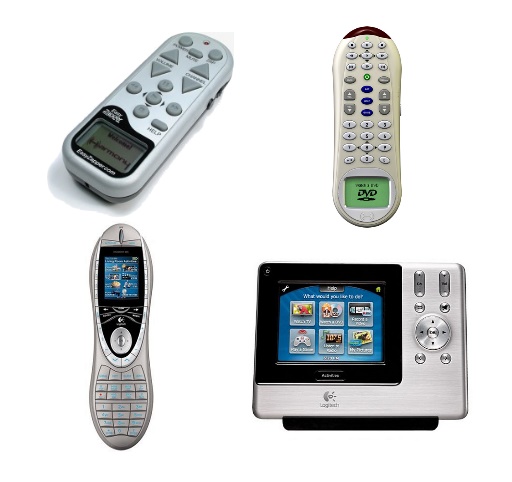
Lastly, some photos of the original Harmony Easy Zapper I bought 7 years ago, and then the rest Harmony remotes … 768, 880 and 1100. See how technology advances in the last 7 years !!

Harmony Remote Controllers

Brand yourself

Just finished a book “The Dip” and one of the key ideas evangelize by the author is about making yourself as the best in your own industry, such that you can develop your desired career – a little bit easier. I am sure it is right and nothing is impossible – but nothing is easy as well. The very first difficult thing is how to tell other people you are one of the best in your industry.

In the world of Internet, one way to advertise yourself naturally is to brand yourself in the popular social networks such as Facebook, Linkedin and Twitter. All these social networks have a profile page that you can dress it up with good information about yourself. For example, you can include your friends’ recommendations in Linkedin and your interests / groups in Facebook. Both will let your friends or potential employers understand more about you.

And for Twitter, looks like not much you can do with its simple profile page. However, inspired by Twitterbacks.com, you can actually beautify the background image of your Twitter profile and include some important information about your twits.

And, here is mine … how’s that ?

Twitter Profile

WordPress 2.7.1 upgrade

WordPress 2.7 is not new but I just managed to upgrade it two weeks ago. I have delayed this major upgrade for quite some time because you know making a major upgrade is quite a pain. You need to disable all the plug-ins, back up the database, download the software, unzip the new software, transfer to the host, then upgrade the database and software … of course, with a hope that everything runs fine. It is not a pleasant one hour, you know.

However, one major selling point to me about version 2.7 is you can now upgrade the software easily (after the above tedious step for version 2.7), that’s why I made the jump two weeks ago.

Then a couple of days ago, WordPress released the vesion 2.7.1 … oh, perfect time to test the automatically upgrade utility. Just backup the database as usual, then go to the Tools menu of the 2.7 dashboard, click upgrade option and confirm the upgrade.

15 seconds later, the upgrade is done !! Perrrrrrfect.

Wordpress 2.7

User Experience – Fare Conversion Table Part 2

One year ago I blogged about how stupid the taxi fare conversion table was designed. Just around end 2008, there was another taxi fare adjustment and therefore our clever Government officials published another fare conversion table and it looks pretty much like that:

So every time after the taxi journey, the driver and you need to find the adjusted taxi fare from this table. And I can tell you, it is a tough job as your eyes need to keep hunting the correct numbers. And the problem is about how the table was designed.

Can you see how this table is designed ? Every 5 fare amount figures are grouped together, but it is not grouped based on the fare amount (e.g. ~$20, ~$30, ~$40 etc.). You may wonder why it is designed that way … and then I found out the reason. The amount figures are grouped per kilometer !! So the first group is the fare amount within the first extra one kilometer, the second group is about the second extra kilometer.

So, why it is designed that way ? Who will search the correct fare amount this way, other than the super smart Government officials ? And here is my design of this new fare amount conversion table. Is it a lot easier to use ? Of course 🙂

Installing Windows 7 beta in Macbook

One of the beauty of using virtual machine software (like VMware) is you can install a new system without affecting the existing ones. So in my Macbook with an XP VM installed, the followings are the steps for installing a Windows 7 beta in the Macbook:

  1. Download the Windows 7 beta ISO file from Microsoft website, the version I downloaded was Windows 7 beta 64 bit.
  2. The ISO file is quite big (3.15 GB) … somehow I failed the download with Firefox in my Macbook. I therefore upgraded the Firefox to version 3.0.5 first, and then the download was ok (it took an hour or two).
  3. Start the VMware, create a new VM, and select “Windows Server 2008 64 bit” as the version. I also did not choose the “Use Easy Install” option as I am not sure VMware can cope with the new Windows 7 or not.
  4. The software will then install the new OS from the ISO file. When asked for Upgrade or Install a new system, I picked the latter one.
  5. The install was smooth and completed in around 30 minutes. I then wrap up the task with installation of VMware tools.
  6. That’s it !! And what others said were true – Windows 7 beta is better than Vista and as fast as the XP.
  7. Following is the picture of running XP, Windows 7 and OSX at the same time … Cool !!