Kindle Apps for Tablet Computer (including iPad)

Ah, the Amazon development team is really efficient, just after a week from the release of Kindle for Mac they have another new product ready to roll out. Somehow the news is broken not from their official press release, but from a report in New York Times. This is the Kindle Apps for Tablet Computer, and it works on table computers including the iPad as well (obviously, they want people to know about this application, before the official launch date of iPad in early April).

Kindle Apps for Tablet Computers

Unlike other Kindle applications (iPhone, PC, BlackBerry, Mac), there are some new fancy features like:

  • Tailored to the size, look, and feel of your tablet computer
  • Adjust screen brightness from within the app to make reading easier
  • Page turn animation replicates the look of turning a page in a book. Or choose Basic Reading Mode for a simpler and unadorned reading experience

In the case of iPad version (assuming Apple will approve it …), the New York Times reports that:

“… large images of book covers are set against a backdrop of a silhouetted figure reading under a tree. The sun’s position in that image varies with the time of day.”

I know you want it, don’t you ? Check out the pictures and have a feel of this new application.

Kindle for Mac, now available

Yap, just one month after the beta version of Kindle for BlackBerry, today Amazon rolls out the Kindle for Mac. The features are similar to other free downloads like Kindle for PC and Kindle for iPhone. However, according to the press release

Several features will be added to the Kindle for Mac app in the near future, including full text search and the ability to create and edit notes and highlights. Kindle for Mac is available to customers around the world as a free download.

So I guess, we need to keep an eye on the future upgrade as well. You can download the free application from www.amazon.com/kindleformac. Will install it tonight to try it out …

Kindle for Mac

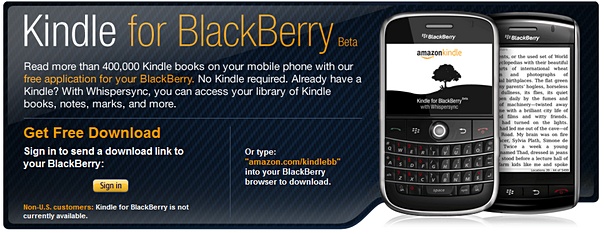
Kindle for BlackBerry (beta) is now available

After the Kindle devices, the applications Kindle for iPhone and Kindle for PC … now we have the Kindle for BlackBerry. The Kindle family is getting bigger and bigger. I can imagine soon we will have Kindle for Android, Kindle for OSX, Windows Phone Series 7 etc. etc. However, something new to me from their press release

  • Search and browse more than 420,000 books, including 102 of 112 New York Times Bestsellers, directly from their BlackBerry
  • Read books in full color, including children’s books, cookbooks, travel books, textbooks and graphic novels

Wow, 420,000 books !! And books in full color !! May be because I didn’t downloaded any cookbooks or travel books before, so I don’t really know whether my Kindle for iPhone and Kindle for PC have this function or not. Anyway, good news for all BlackBerry users.

Don’t forget to check out other Kindle posts !!

Kindle for iPhone International version and how WhisperSync works

Amazon released the Kindle for iPhone application now to more than 60 countries. In other words, you can now download it to your iPhone even though you don’t have an iTunes US account. In addition, you can now synchronize your reading between the Kindle 2 International and your iPhone (with Kindle for iPhone International application installed). If your country is not covered in that list of 60, you still can install the Kindle for iPhone US version by a proven method.

How WhisperSync works

First of all, we need to understand how all these devices are linked together – in fact, they are not linked directly, but via Amazon:

Kindle 2 <— X —>   Amazon <— Y —>   iPhone

If you’re in US, the connection “X” is the Whispernet via Sprint network; and the connection “Y” is the 3G phone network. And since Sprint network is not available outside US, that’s why the sychronization with your Kindle 2 US version will not work outside US.

However, in the case of Kindle 2 International, the connection “X” is just ordinary 3G / GPRS network. Therefore, the synchronization works … with a twist. That is, how you “trigger” the synchronization.

Two scenarios here, the first one is how to synchronize your furthest reading page to Amazon. To save battery and data transfer, the Kindle (and the Kindle iPhone application) will not send the page information to Amazon, whenever you flip to next page. Instead, it will do it only when you “close the book”. In other words, in Kindle iPhone application’s case, closing the application will not send the information back to Amazon.

  • For Kindle, when it goes to sleep mode or you close the book (i.e. go to Home page by pressing Home button), the latest information will be synchronized to Amazon. Of course, you need to turn on your wireless first.
  • In Kindle for Iphone, you need to press the “Home” button on the top left to “close the book”, then the furthest read page information will be sent back to Amazon…

The second scenario is how your other device pick up the furthest read page from the original device.

  • In Kindle 2, press Menu, select “Sync to Furthest Page Read”, Kindle will connect to Amazon.com and then ask you whether you want to synchronize the page. Press Yes and you’re done. Again, make sure the wireless option has been turned on.
  • In Kindle for iPhone, it is easier, as every time you start up the application, it will connect to Amazon via the phone network to synchronize and you will also be prompted to ask you whether you want to synchronize the page. Press Yes and that is it.

Enjoy !!

Kindle photo

Update 1: Somehow my Kindle 2 always connect to WhisperNet via GPRS, not 3G network in HK.  A great tips from reader John and also Mobileread.com, you can actually select the network you want !! Check out this post.

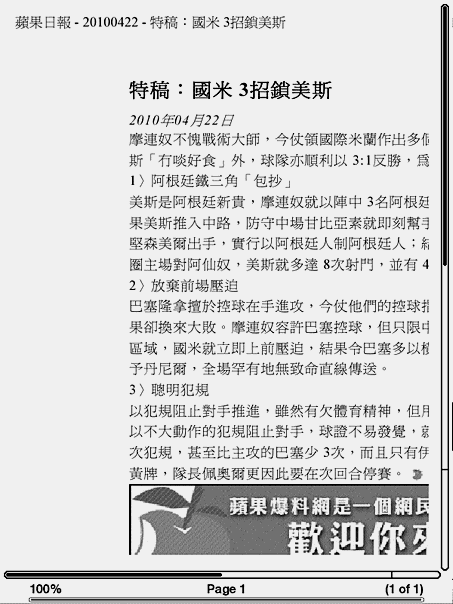
Kindle 2 firmware update to read PDF files

Amazon released the latest firmware update (version 2.3) for Kindle yesterday (2009-November-24), and couple of new features are extremely important and exciting for Kindle 2 users. Here are the details as well as the steps, findings.

New firmware features for Kindle 2

  1. Longer battery life for Kindle (International version): You can now read for up to 1 week on a single charge with wireless on. Turn wireless off and read for up to 2 weeks (i.e .the same as before).
  2. Built-in PDF reader: Your Kindle can now display PDF documents without losing the formatting of the original file (it works but not all files, see below).
  3. Manual screen rotation: The Kindle screen can now manually rotate between portrait and landscape views so you can see the entire width of a web page or magnify the page of a PDF file. The page-turn buttons work the same in either orientation, and the 5-way controller movements are switched to match the orientation. (See more below)
  4. Option to convert PDF files to Kindle format. If you prefer to have your personal PDF documents converted to the Kindle format (so that they can reflow), type “Convert” in the subject of the e-mail when you submit your personal document to your @kindle.com address. (I don’t see any difference on the Convert feature, but will test more)

Upgrade your Kindle 2 firmware, wirelessly

  1. First of all, some preparations – make sure you have a fully charged Kindle 2, unless your Kindle 2 is connecting to your computer. Check the current version of the firmware (go to “Home”, press “Menu”, select “Settings” and check the bottom of the page). If the version number is 2.2 or lower, you shall upgrade to the latest version to enjoy the new features.
  2. If you want to apply the new firmware manually (e.g. you don’t have access to the wireless network), check out the steps recommended by Amazon in their support page.
  3. Now, turn on the wireless connection (go to “Home”, press “Menu”, select “Turn Wireless On”), then select “Sync & Check for items”. It will then take 15, 20 minutes to download the new firmware as well as checking any new books to download.
  4. Once it finished to download the top bar of your Kindle may show “No new items” – it just means there is no new books to download, but your new firmware may has already downloaded. You can check it to see whether there is a new item in the menu – go to “Home”, press “Menu”, check if there is a new item “Update your Kindle”. If yes, then your new firmware is downloaded.
  5. Now select “Update your Kindle”, your Kindle will apply the firmware and restart the device. Another a few minutes, your Kindle is upgraded. Again, check the firmware version to see if it is version 2.3 (go to “Home”, press “Menu”, select “Settings” and check the bottom of the page). In addition, every time you turn on the Kindle from sleep mode, you will see a word “Opening” flashing …
  6. To test it out, simply send a PDF file to your Kindle via your personal Kindle email address – xxxxx@kindle.com. After a few minutes, try “Sync & Check for items” in the “Menu” again, and Amazon will download the PDF file to your Kindle. You will see a new file in your Home menu with a “pdf” in the left hand side. Select it and you shall see your PDF file with all the formatting in place !! (Somehow, one of my PDF files was not displayed correctly, but it is one with all graphics …). If the PDF file page is too small, try the new screen rotation function come with the version 2.3.

Screen Rotation

The Kindle screen image can be rotated so you can see the entire width of a web page or magnify the page of a PDF file.

Here’s how to lock your screen into portrait or landscape mode:

  1. Press the “Text” key (i.e. “aA” key, next to “SYM”) located on the bottom row of the keyboard. Screen Rotation is displayed at the bottom of the menu.
  2. Move the 5-way to select one of the four options to lock the display in a set orientation – Portrait; Landscape with the keyboard on the left; Portrait with the keyboard at the top; Landscape with the keyboard on the right.
  3. Press the controller to confirm your choice.

However, you can view Kindle Store pages only in portrait mode.

Hope it helps and enjoy this Thanksgiving Day gift from Amazon !! And if you don’t have the Kindle 2 yet, it is probably the best time to have one

Update 1: With this new version, you shall be able to read PDF with other languages (e.g. Chinese PDFs, Japanese PDFs) as well. Just make sure your PDF writer has all the languages / fonts installed. Then print the source file (with large font size, and narrow margin) to PDF and transfer to your Kindle will do.