6 steps to set up an Amazon aStore in a WordPress blog with Thesis theme

After over a year of “part-time” e-Commerce (read – link referrals), I think it is about time for my blog to host a bigger eshop. I have set up the Amazon aStore before as a standalone website, but have not tried embedding it in a WordPress blog, especially one (like mine) equipped with the Thesis theme (one of the best WordPress theme frameworks in the market). So let’s give it a try.

If you’re familiar with the Amazon Associates program, you can probably finish the set up within an hour, in only 6 steps (no kidding !!). First thing first, here is the plan, you first set up your own Amazon Associates account, then you will set up the aStore parameters, and finally embed the aStore in your blog.

Step 0 – Login to Amazon Associates program, click “aStore” in the top blue color menu, and then click “Add an aStore” with your Tracking ID.

Step 1 – Define product categories in your new store. In the example below, I created 4 main categories (you can create subcategories if you want to). In the right hand side, the most important field is how you would like to populate the products from Amazon to your aStore. There are 3 options, and the easiest one is the first one – “Add products by Amazon.com category”. Just search the category and add to your store. You can also add products one by one or add products from a pre-defined listmania.

1. Add Category

Step 2 – Customize the look and feel of the store, I suggest to make all the colors (headers, background, text, links etc.) the same as your blog’s theme colors.

2. Customize theme

Step 3 – Select where to put the category and search sidebar. I picked the left hand side option as it mimics the Amazon store (even though my blog used to have sidebar on the right).

3. Sidebar

Step 4 – Get the store link by clicking the second option – i.e. get the iframe code. Copy the iframe code to the notepad for the next step. The Amazon aStore part is finished.

4. Get link

Step 5 – Now, start up your WordPress blog engine, login to your administrator mode, add a new “Page”, not a new blog post. Instead of using Visual editor, use the HTML editor and copy the iframe statement there. Then in the Page Attributes box, select “No Sidebars” for the Template option. Save the draft and you can preview it. If it looks ok, publish the newly created Page. Wow!! Your eshop with all the Amazon products, payment gateway and delivery logistics is now online.

5. Create page

Step 6 – The very last step is simply to put up your eshop page to the navigation menu of the Thesis theme. Go to Thesis Site Options, in the Navigation Menu panel, turn on the newly created Page and you can edit the display text as well (in the example, I simply edited it to “Store”).

6. Site Options

That’s it … and here is my Amazon aStore in an hour !!

Update : Please note that WordPress.com does not allow embedding iframe in your website. So the above steps work for your self-hosting blog (i.e. download and install from WordPress.net) only.

Kindle for the web

I think for those who care about eBooks, especially for those using Kindle to read ebooks, you probably know that you can read the ebook from Amazon in many platforms such as PC, Mac, iPhone, iPad, Android and Blackberry. However, you will probably wonder how you can read / preview an ebook within a browser, or a blog.

Wait no further, Amazon.com today introduced the beta version of โ€œKindle for the Webโ€, which enables people to read and share digital book samples in their browsers without the need to install or download anything.

Kindle for the web

I found it is the perfect way to recommend the books I like, instead of just a name or a book cover image … for example, the first chapter of the one I recently finished – Delivering Happiness: A Path to Profits, Passion, and Purpose.

http://kindleweb.s3.amazonaws.com/app/KindleReader-min.jsKindleReader.LoadSample({containerID: ‘kindleReaderDiv’, asin: ‘B003JTHXN6’, width: ‘680’, height: ‘600’, assoctag: ’80dayscom-20′});

The best ebook reader

“What’s the best ebook reader in the market ?”, “What’s the best ebook reader for me ?”, “Is iPad better than Kindle ?” … I asked myself these questions many many times in recent months, and I found the answer today.

As you can see from the photo below, I can read an ebook with Kindle, or applications of Kindle for iPhone, iPad, Mac and Windows. I found the Kindle for iPhone is great, just the screen is too small. The Kindle for iPad is also great, just it is too heavy, and you cannot read it under direct sunlight. iPad is perfect for reading eMagazine and casual reading, but to read a good and lengthy book ? No thanks.

And what about the Kindle applications for Mac, Windows, or even Blackberry and Android ? All these are good, but I know I will not take my Mac and my Windows laptop with me all the time; and I don’t have a Blackberry and Android phones (yet). So back to the questions … and there is only one answer:

“The best ebook reader is the one that’s with me.”

In other word the best ebook reader, to me, is the Kindle – as it is always travel with me. May be I will get a new one to replace the Kindle 2 (say, Kindle 4 when they support touch screen or Unicode), but for now, really it is the best. However, if iPad is the one device that always with you … good, it is the best eReader for you – just don’t let other people sell you the Kindle story.

By the way, how did I find the answer today ? I looked at the Shanghai photos I made recently, with my trusty Olympus E-P1 camera and then I reckon …

“The best camera is the one that’s with you.”.

Various eReaders

What to share and what your friends all care about ?

WordPress, Blogger, Facebook, Linkedin, Digg, Reddit, Twitter, Plurk, Foursquare, Gowalla … there are so many “networking” sites in Internet that you can access everyday from your laptop, cafe PCs and your mobile devices. Many times I ask myself why I want to share with my friends or a total stranger of what I am thinking, where I am and how to resolve some tricky problems.

I think the answer is simple, because many of us want to be a part of larger group, a good cause, or simply of something you care.

Not a frequent blogger, twitter myself but every time I want to post something on these social networks, I can’t help but to ask myself what the purpose of that blog post, tweet, news, or location is ? The information may be about Kindle, iPhone, photography, Information technology, web usability, food but the bottom line is – will my “friends” or “followers” benefit from it ? If not, then why post ?

Couple of days ago when I was reading the book Delivering Happiness : A Path to Profits, Passion, and Purpose by Tony Hsieh, a picture popped up in my mind.

That was, all these “information” I wanted to post in these networks actually intersect with each others and each of the intersections may serve a different group of my audiences. Then I drew the following picture / graph … about how I want to serve you, as my friend; with my expertise, news, views and where-abouts.

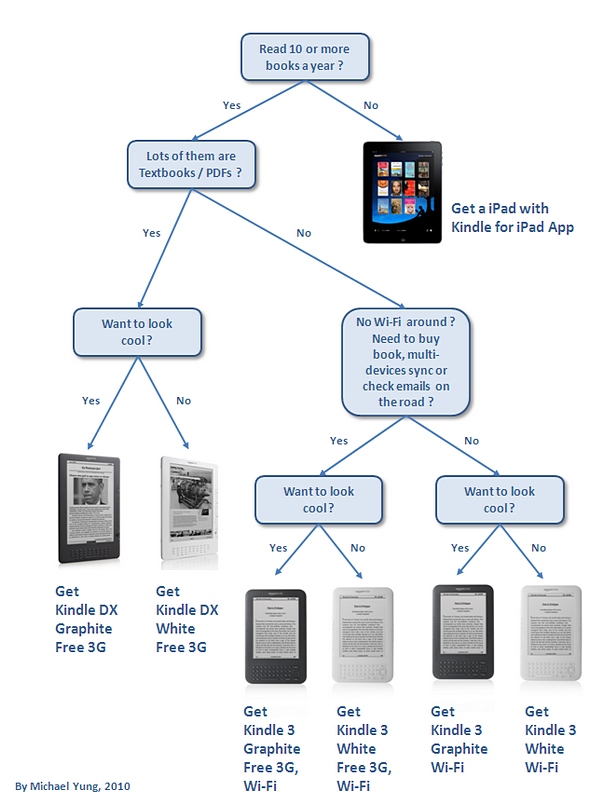
Which Kindle to buy ?

There are 6 models of Kindle you can buy now from Amazon.com, the Kindle DX (with white or graphite colors, in different prices), the Kindle with Free 3G + Wi-Fi, and the Kindle with Wi-Fi only (both with white or graphite colors). Each of these Kindles is good device to read, but which Kindle shall you buy ?

To answer this question, I draw up the following flowchart and hope you will find it useful.

Don’t miss all the other Kindle blog posts !!