Video about deadline

What is really a deadline ?

In the words of a design student, Bang-yao Liu, of Savannah College of Art and Design …

Every time when I am busy, I feel that I am not fighting with my works, I am fighting with those post-it notes and deadline.

So he made a brilliant video about deadline with, believe it or not … 6,000+ Post-it notes. Enjoy !!

Curious about how he made this video ? Check it out.

Claim your Facebook Username

So, any plan for the coming weekend ? Or more specifically, 12:01 noon 13rd June Hong Kong time ? It is important for you all Facebook users, as it is the day, time that you will be able to “claim” your Facebook Username. Imagine millions of Facebook users want to do it at the same time, I can tell it will be a nightmare for the Facebook IT support / infrastructure team. And of course, the user experience will not be great either.

Anyway, if you get your dream Username, you can refer to your profile like the following. And of course your friends will find you easier with this easy-to-remember URL.

Facebook profile link

The problem in fact is how you can secure your dream Username … According to the Facebook blog, in that particular day, you will have an option to select one of the suggested names or define your own if you don’t like the suggestions.

Claim your Facebook Username

If Facebook keep their promise, it means we all can now envisage what the suggestions will be displayed on screen coming Saturday. And if those are not what you want, then you better dream up a good one for yourself and fill up the text box “Choose Your Own”. So here is my recommendations to you all:

  • Before this weekend magic moment, i.e. in the next two days, login to your Facebook account and search your own name. Then check how many people in Facebook world have the same name as you – it means you will know how many potential Facebookers will fight for the similar dream name in your mind.
  • Start jotting down what dream names you like, and prioritize them – it means if you cannot get the first priority name, quickly type in the next one …
  • Double check your hardware and Internet connection before that specific date / time. If there is any problem in the Saturday morning, seek help immediately.
  • Once you secured your dream Username, Twit it, mail it, blog it, and change the Facebook profile information in your Visual CV, LinkedIn and Google Profiles (if you have any one of those …)

Enjoy the web traffic that day !!

Review of three iPhone docks

Different horses for different courses … all along I want to use my iPhone in three different places for totally distinct usages:

  1. Connect to a notebook computer, sync my iPhone but also house an USB hub and memory card reader;
  2. Connect to nothing, but iPhone as a loud music player in my small office;
  3. Connect to a mini-HiFi, my iPhone as the music and Internet radio source.

In other words, all I need is a multi-purposes devices – an iPhone dock that can connect to an AV amplifier but also a speaker, USB hub and a memory card reader. Of course, there is no such device and therefore I bought three docks to achieve this.

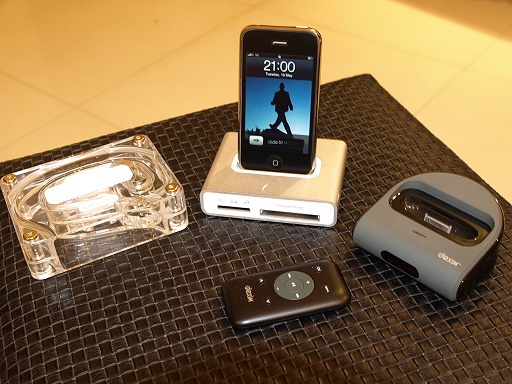
First is the Simplifi from Griffin Technology – It is a charge/sync dock, memory card reader, and USB hub. See the photos below for the look of it, it works perfectly and I am now using it with my notebook computer. It really is a space saver.

  • Pros : Hi-speed USB link, all-in-one device, not expensive, match with MacBook nicely
  • Cons : USB cable to connect to computer is not long enough

The second one is also from Griffin and it is a simple dock that also act like a mono-speaker – Griffin AirCurve Acoustic Amplifier for iPhone. The Aircurve, a cleverly-designed acoustic amplifier, is basically a coiled waveguide “horn’ that collects the sound from the built-in speaker of your iPhone and then amplifies it. Of course it is not a Bose speaker system, but it is good enough for my small office.

  • Pros : Stylish, not expensive
  • Cons : Not a small dock (check the pic), so-so quality loudspeaker (it is mono, after all), you also need to get your own iPhone cable to do the synchronization

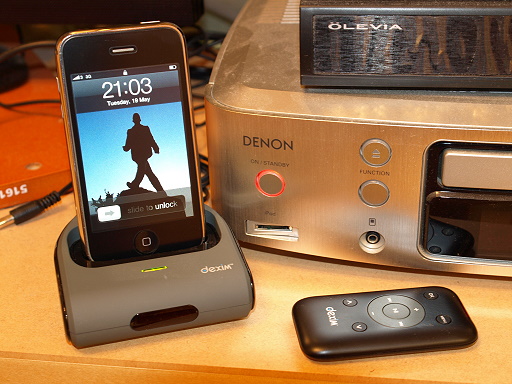
Lastly, the Dexim AV Dock is similar to the Apple iPhone AV dock. It connects to my mini-HiFi and in turn to my LCD TV. Now with this AV dock, I can watch videos, view photos on my TV. And also I can play my iTunes music, Internet radio show thru the mini-HiFi.

  • Pros : An cheaper alternative to the Apple dock / cable, easy to set up, stylish
  • Cons : You need to turn the volume way up high to appreciate the music

Life is good.

Reading PDF documents in Kindle 2

Other than ebooks, lots of people want to read PDF documents in their Kindle 2 / Kindle 3. However, since the Kindle 2 cannot display PDF documents natively (Kindle DX can do that however), the big question to many Kindle 2 owners is therefore how to make it work ? One simple answer is to use the conversion service by Amazon.com, however this method is not the best one. I hope this blog post can provide a good answer to some of you.

1. Let Amazon.com do it for you

As mentioned, Amazon.com offers a service to let you just do that. You send your file to your Kindle email address and after a few minutes, Amazon will send the converted file (with .azw extension) to you (via Whispernet). It cost some money to do that, or if you want to do it free, send your PDF document to the free Kindle email address. With this approach you can also save the file and transfer to your Kindle 2 with the USB cable – i.e. it works prefectly if you’re outside US. The only trouble with this method is the converted file is actually not easy to read at all … if your PDF document is full of graphical images and illustrations.

2. Hack your Kindle 2 to do it

Yes, you can hack your Kindle 2 to convert PDF document automatically … just install the Savory tool by Jesse Vincent. This tool converts every page of the PDF document into images and you can read it in portrait or landscape modes.

I like Jesse’s implementation a lot, but I don’t want to hack my Kindle 2 … and I don’t like to uninstall the hack before every software upgrade.

3. Convert to Mobi file format

Kindle 2 supports many formats such as .Mobi, .prc and .txt format, so you can also install file conversion programs to convert your PDF document to .Mobi files. I tried this before with the Calibre opensource tool. And there is another tool from MobiPocket.com that can do this as well. Unfortunately, the converted PDF document looks pretty much like the .azw format – i.e. not that readable for image-heavy PDF documents.

4. Convert to images without hacking your Kindle 2

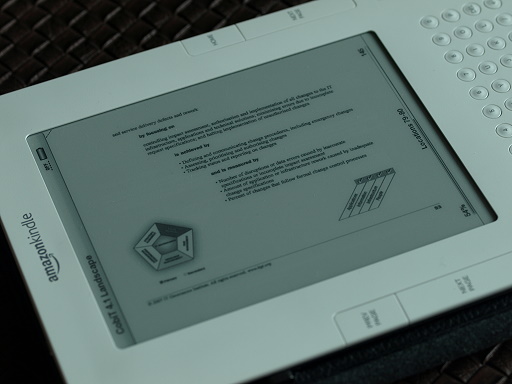
That method is similar to the second approach above, but you don’t need to hack your Kindle 2. Just download the PDFRead 1.8.2 from the mobileread.com website, install it and convert your document with the profile parameters (check image below). Transfer the converted document (a .prc document) to your Kindle and it’s done. The upside of this approach is the very readable output (including Chinese document as well !!). The downside is you cannot perform text search with this image-based document, and many times you need to zoom in to read the details.

Check the images below …  hope you find this useful and enjoy your PDF documents.

Update 1: Amazon announced a firmware update to support native PDF reading in Kindle 2. Check my blog post for the step by step upgrade procedure.

Update 2: Amazon also announced Kindle firmware 2.5 to cover PDF Pan and Zoom.

Update 3: Get your Kindle 3 to have all the PDF functions.