Running Gmail with your Kindle 2

Imagine the following scenario …

  • You’re a stranger in a foreign land / airport;
  • Your smartphone is out of juice or you don’t want to pay hefty data roaming fee;
  • You cannot find a (free) WiFi hotspot for your laptop;
  • And you need to answer some emails via Gmail.

Sounds familiar ? Now you can do that if you have a Kindle 2 (or Kindle 3), as long as you can live with some constraints. As many of you already know, there is a very simple browser come with the Kindle 2, and there is a mobile version of Gmail with minimal graphics. Therefore, it makes sense to use that simple browser to access the simple web application. The constraints and preparation works are:

  1. It works only for countries / cities that support by Amazon Kindle 2’s WhisperNet  (the flip side of this is you don’t need to pay expensive data roaming fee to check emails !!)
  2. The screen of Kindle 2 is relative small;
  3. The keyboard of Kindle is hard to type;
  4. There is no scroll up and down function (you need to use Next Page and Prev Page keys);
  5. You cannot read / write double byte / Unicode characters;
  6. You will not able to attach files.
  7. In the settings of the browser, turn on Advanced view mode and turn on Javascript

Still want to continue ? OK, let’s start, step-by-step :

  1. Turn on the wireless in your Kindle. Then go to “Home” / “Menu” / “Experimental”, and select “Basic Web”
  2. You will see the bookmark page, and “Menu” / “Enter URL”, and enter m.gmail.com
  3. You will see the basic login page and enter your Gmail account information.
  4. Somehow, Gmail will display the usual Gmail screen with all the mails which makes the screen very busy. I believe Gmail do this because they know that the request is not from a mobile device. Now, go to the URL bar on top, and enter m.gmail.com again !!
  5. Now you shall see the mobile Gmail email list page.
  6. Press “Next Page” key till you reach the last page, locate “Compose Mail” command …
  7. Enter the from address, to address, subject line and mail content. Add CC, or BCC if needed. Press “Send” and that’s it …

Don’t forget to “Sign out” (in the mobile Gmail page footer) before you turn off the Kindle !!

Enjoy …
Annual report of a tiny, little blog

We’ve watched the year 2009 come and go, therefore I think it is about time to check what this blog has done in the past 12 months. First of all, I have to admit that I spent rather little time in writing blog posts last year compare to previous years. The main reason was many times, I just tweeted a line or two about my thoughts and then no longer repeated those in the blog. However, I guess I did a few good things to my blog …

First is I installed the Thesis theme – it is simply the most versatile WordPress theme in the market right now. And I also implemented a few very good plug-ins : The TweetMeme Retweet Button, the No Self Pings, the Where did they go from here etc. Those really made the blog looks a little bit more professional.

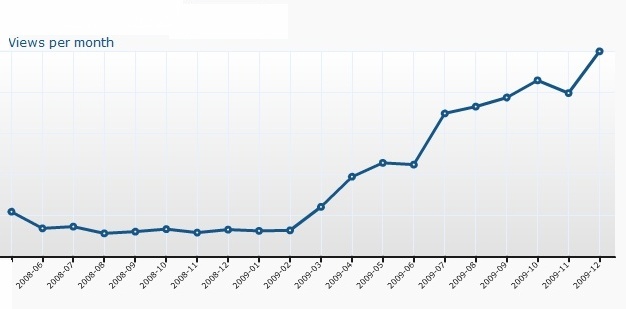
The second good thing I did to my blog was I started to post information about Amazon Kindle 2 and Kindle DX from March last year. I bought the original Kindle 2 US version and then detailed how to purchase it from Amazon, how to set it up, how to use it and how to purchase ebooks … the traffic to the blog then surged:

And finally I put the Amazon affiliation network into good use … I did not actively promote the Amazon website and products, but just link to their Kindle products pages. Surprisingly, I start getting some affiliation fee from Amazon. You know, I never thought I can earn some pocket money from my blog … In addition to the affiliation fee surprise, another thing surprised me a lot is what products the visitors bought after they surfed to the Amazon website. And here are some interesting details:

To this tiny little blog, it is truly amazing !!

Connect Kindle 2 to 3G network

Somehow my Kindle 2 always connect to WhisperNet via GPRS network, not 3G network in HK.  A great tips from reader John and also Mobileread.com, you can actually select the network you want !!

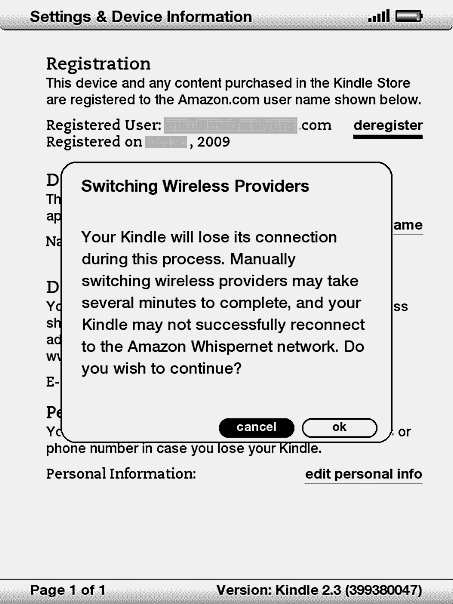
First, turn on the wireless connection of your Kindle, then press “Home”, “Menu”, “Setting” and in that screen, press “311” (yap, that’s the magic number) from the Kindle keyboard. Then mysteriously, an application pops up and will warn you about this command, just select “OK”, and then you will see a message – “Scanning for available wireless providers …”.

About a minute later, a full list of network services providers (with both 2G and 3G connections) will be displayed. Just pick the one you want and that’s it !!. Try “Menu” again, and you shall see the “3G” symbol next to the signal bars, instead of previously the “GPRS“.

Please note that it does not matter whether you have a data plan with the network company to make this work, looks like Amazon already has a deal with the one listed …

Now my Kindle not only synchronize faster, it also works a lot faster when browsing the Kindle Store.

Enjoy !!

Update : If you’re using a Kindle 3 and cannot access to the numeric entry field – try pressing Alt-E, Alt-Q, Alt-Q … hope it helps.

Kindle for iPhone International version and how WhisperSync works

Amazon released the Kindle for iPhone application now to more than 60 countries. In other words, you can now download it to your iPhone even though you don’t have an iTunes US account. In addition, you can now synchronize your reading between the Kindle 2 International and your iPhone (with Kindle for iPhone International application installed). If your country is not covered in that list of 60, you still can install the Kindle for iPhone US version by a proven method.

How WhisperSync works

First of all, we need to understand how all these devices are linked together – in fact, they are not linked directly, but via Amazon:

Kindle 2 <— X —>   Amazon <— Y —>   iPhone

If you’re in US, the connection “X” is the Whispernet via Sprint network; and the connection “Y” is the 3G phone network. And since Sprint network is not available outside US, that’s why the sychronization with your Kindle 2 US version will not work outside US.

However, in the case of Kindle 2 International, the connection “X” is just ordinary 3G / GPRS network. Therefore, the synchronization works … with a twist. That is, how you “trigger” the synchronization.

Two scenarios here, the first one is how to synchronize your furthest reading page to Amazon. To save battery and data transfer, the Kindle (and the Kindle iPhone application) will not send the page information to Amazon, whenever you flip to next page. Instead, it will do it only when you “close the book”. In other words, in Kindle iPhone application’s case, closing the application will not send the information back to Amazon.

  • For Kindle, when it goes to sleep mode or you close the book (i.e. go to Home page by pressing Home button), the latest information will be synchronized to Amazon. Of course, you need to turn on your wireless first.
  • In Kindle for Iphone, you need to press the “Home” button on the top left to “close the book”, then the furthest read page information will be sent back to Amazon…

The second scenario is how your other device pick up the furthest read page from the original device.

  • In Kindle 2, press Menu, select “Sync to Furthest Page Read”, Kindle will connect to Amazon.com and then ask you whether you want to synchronize the page. Press Yes and you’re done. Again, make sure the wireless option has been turned on.
  • In Kindle for iPhone, it is easier, as every time you start up the application, it will connect to Amazon via the phone network to synchronize and you will also be prompted to ask you whether you want to synchronize the page. Press Yes and that is it.

Enjoy !!

Kindle photo

Update 1: Somehow my Kindle 2 always connect to WhisperNet via GPRS, not 3G network in HK.  A great tips from reader John and also Mobileread.com, you can actually select the network you want !! Check out this post.

Kindle 2 firmware update to read PDF files

Amazon released the latest firmware update (version 2.3) for Kindle yesterday (2009-November-24), and couple of new features are extremely important and exciting for Kindle 2 users. Here are the details as well as the steps, findings.

New firmware features for Kindle 2

  1. Longer battery life for Kindle (International version): You can now read for up to 1 week on a single charge with wireless on. Turn wireless off and read for up to 2 weeks (i.e .the same as before).
  2. Built-in PDF reader: Your Kindle can now display PDF documents without losing the formatting of the original file (it works but not all files, see below).
  3. Manual screen rotation: The Kindle screen can now manually rotate between portrait and landscape views so you can see the entire width of a web page or magnify the page of a PDF file. The page-turn buttons work the same in either orientation, and the 5-way controller movements are switched to match the orientation. (See more below)
  4. Option to convert PDF files to Kindle format. If you prefer to have your personal PDF documents converted to the Kindle format (so that they can reflow), type “Convert” in the subject of the e-mail when you submit your personal document to your @kindle.com address. (I don’t see any difference on the Convert feature, but will test more)

Upgrade your Kindle 2 firmware, wirelessly

  1. First of all, some preparations – make sure you have a fully charged Kindle 2, unless your Kindle 2 is connecting to your computer. Check the current version of the firmware (go to “Home”, press “Menu”, select “Settings” and check the bottom of the page). If the version number is 2.2 or lower, you shall upgrade to the latest version to enjoy the new features.
  2. If you want to apply the new firmware manually (e.g. you don’t have access to the wireless network), check out the steps recommended by Amazon in their support page.
  3. Now, turn on the wireless connection (go to “Home”, press “Menu”, select “Turn Wireless On”), then select “Sync & Check for items”. It will then take 15, 20 minutes to download the new firmware as well as checking any new books to download.
  4. Once it finished to download the top bar of your Kindle may show “No new items” – it just means there is no new books to download, but your new firmware may has already downloaded. You can check it to see whether there is a new item in the menu – go to “Home”, press “Menu”, check if there is a new item “Update your Kindle”. If yes, then your new firmware is downloaded.
  5. Now select “Update your Kindle”, your Kindle will apply the firmware and restart the device. Another a few minutes, your Kindle is upgraded. Again, check the firmware version to see if it is version 2.3 (go to “Home”, press “Menu”, select “Settings” and check the bottom of the page). In addition, every time you turn on the Kindle from sleep mode, you will see a word “Opening” flashing …
  6. To test it out, simply send a PDF file to your Kindle via your personal Kindle email address – xxxxx@kindle.com. After a few minutes, try “Sync & Check for items” in the “Menu” again, and Amazon will download the PDF file to your Kindle. You will see a new file in your Home menu with a “pdf” in the left hand side. Select it and you shall see your PDF file with all the formatting in place !! (Somehow, one of my PDF files was not displayed correctly, but it is one with all graphics …). If the PDF file page is too small, try the new screen rotation function come with the version 2.3.

Screen Rotation

The Kindle screen image can be rotated so you can see the entire width of a web page or magnify the page of a PDF file.

Here’s how to lock your screen into portrait or landscape mode:

  1. Press the “Text” key (i.e. “aA” key, next to “SYM”) located on the bottom row of the keyboard. Screen Rotation is displayed at the bottom of the menu.
  2. Move the 5-way to select one of the four options to lock the display in a set orientation – Portrait; Landscape with the keyboard on the left; Portrait with the keyboard at the top; Landscape with the keyboard on the right.
  3. Press the controller to confirm your choice.

However, you can view Kindle Store pages only in portrait mode.

Hope it helps and enjoy this Thanksgiving Day gift from Amazon !! And if you don’t have the Kindle 2 yet, it is probably the best time to have one

Update 1: With this new version, you shall be able to read PDF with other languages (e.g. Chinese PDFs, Japanese PDFs) as well. Just make sure your PDF writer has all the languages / fonts installed. Then print the source file (with large font size, and narrow margin) to PDF and transfer to your Kindle will do.