That’s what matters to me …

No, Apple II was not my first personal computer, it was the Commodore 64.

No, iPod was not my first portable music player, it was a Aiwa portable tape player.

No, Macbook Pro was not my first laptop computer, it was a Toshiba Portégé.

No, iPhone was not my first smartphone, it was Dopod C730.

No, iPad was not my first tablet, it was Amazon Kindle.

And no, Steve Jobs was not my first idol, my dad is.

But just imagine the modern days without Jobs, Apple II, iPod, MacBook, iPhone and iPad. And imagine the days without mouse, GUI, touch screen gesture …

Remembering the man who behind all these, and who made “IT” stands for “Innovation, Transformation”.

“Being the richest man in the cemetery doesn’t matter to me … Going to bed at night saying we’ve done something wonderful… that’s what matters to me.” – Steve Jobs

My Kindle-iPad experiment

If you search “Kindle vs iPad” in Google and you will probably find over 6 millions results, in other words this topic has been discussed to death. And of course, Amazon thinks there are many good reasons why Kindle is a better ebook reader and I also blogged before that with certain settings, one can use iPad to read ebooks.

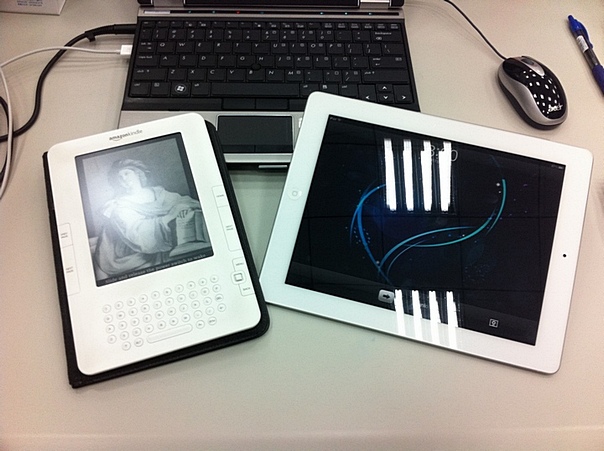
But still, to really find out which device is the better ebook reader, I decided to do an experiment – read the first half of an ebook (“I Live in the Future & Here’s How It Works: Why Your World, Work, and Brain Are Being Creatively Disrupted“) with Kindle 2, and then the second half of the same ebook with iPad 2. And here are my findings:

iPad

  1. I like the fact that you can check mail, news, tweets, Facebook walls etc. easily while you’re reading your ebook
  2. I hate the fact that you can check mail, news, tweets, Facebook walls etc. easily while you’re reading your ebook
  3. It’s the faster device of the two
  4. The battery lasts only 10 hours, and I don’t like the battery indicator (in percentage) in the upper right corner … it makes me worry about the battery all the time
  5. Without a keyboard, the touch gesture can turn the page, highlight a word / sentence, toggle the menu system etc. etc. – in one word, “confusing”
  6. I like all the colorful book covers in the home screen. It’s pretty much like the album library in iPod is great, but I still like to see all the CD covers.

Kindle

  1. I like the fact that you cannot check mail, news, tweets, Facebook walls etc. easily while you’re reading your ebook
  2. I hate the fact that you cannot check mail, news, tweets, Facebook walls etc. easily while you’re reading your ebook
  3. The e-ink screen is much much better than iPad (for any serious long form reading), your eyes will never get tired, strained and drained;
  4. Battery life of two weeks is good, you can easily finish a book without a recharge;
  5. With the keyboard and buttons to go to next / previous page, it is a lot easier to use.
  6. You can buy ebook easily with the Kindle shop.

Summary

Without a doubt, Kindle is a much better ebook reader if you like focused long form reading. However, if you can only take one device with you and reading is not your primary purpose, get an iPad. You won’t regret it.

Comparison of iPad news reading apps

I wrote about how to make the news comes to you, so the natural next step is find a good tool to read / consume the news. While iPhone is my everyday mobile device, but to read news, iPad is really better. So I installed 4 iPad apps – Flipboard, Zite, MobileRSS and Twitter to find my ideal tool to read news; and here is the comparison – how I read an HBR news with the four applications.

Note that it is not an “evaluation report” as I believe each of us have different evaluation criteria and therefore this post will focus how I read the same news with different programs. Lastly, iPad is still not a good tool to read books, Kindle is much better, but it is another story.

Flipboard

Rated the best iPad application in 2010 and I think most of iPad users have this installed. To connect to the news, just select one of the predefined news sources or you can connect the apps to your Twitter account. Following is the screen shot of the news The Only Thing that Really Matters from HBR.

As you can see the apps strip off all the ads, headers and other elements but only show you the news . Of course you can see the original news if you “click” the source link but in essence, the presentation is pretty plain …

Zite

This apps’ tagline is “Personalized Magazine” and indeed you can feed in many news sources to it and also connect your Twitter feeds to it. One thing different from Flipboard is it does not support your Facebook friends’ feeds (yet). Following is the same news from HBR. As you can see the presentation format is pretty good. You can also “inform” the tool that you like this type of news or the source of the news (i.e. HBR in that case), then the program is smart enought to feed more news similar to that (in that case, business news) or from the same source.

MobileRSS

If your news sources are mainly website RSS but not Twitter and Facebook, then MobileRSS is also a good choice. One thing I don’t like much is the all black default color scheme (you can change it to other themes) and you will see some sponsor ads. See below …

Twitter

The last news apps is in fact the Twitter for iPad, and obviously the main news sources are your followers. Since many websites provide both RSS and Tweets, you therefore can use this to view many news. Unlike the above tools, however, it renders the HBR news like what a browser will do … in other words, you will also see the banner ads in the page; and you need to scroll more to see the whole news article.

Summary

All four tools are great for their own purposes, however, none of them are perfect to my purpose yet. If I have to choose, I think I will use Zite more …

Kindle for iPad survival guide

I have to admit I did not pay much attention to Kindle for iPad as the tool to read eBooks, even the application “looks” good with iPad and iPad 2. Reason is simply that I have a Kindle and it’s a much better device for reading. However, in most trips I will bring both my Kindle and iPad 2 along – the Kindle for eBooks, and the iPad 2 for emails, Facebook, RSS, and eMagazines like Bloomberg Businessweek.

On the other hand, there are trips that bringing two devices is a bit too heavy; and I have to decide – Kindle or iPad 2 ? For me, sometimes it is Kindle (when I have a book to finish …) and sometimes it is the iPad 2 (say, when there is a new issue of Businessweek to read). So when there is only the iPad 2 with me, and I want to read a few chapters of an eBook, I need to use Kindle for iPad apps. And to make this “reading experience” a more pleasant one, I applied the following settings to the application …

Pick the right books

All your purchased ebooks are stored in the Amazon archive, you can transfer all the books from the archive to your iPad but my recommendations is to only transfer the ebook(s) you are reading to your iPad, that save space in your iPad and also the synchronization time every time you start up the application.

Change the settings

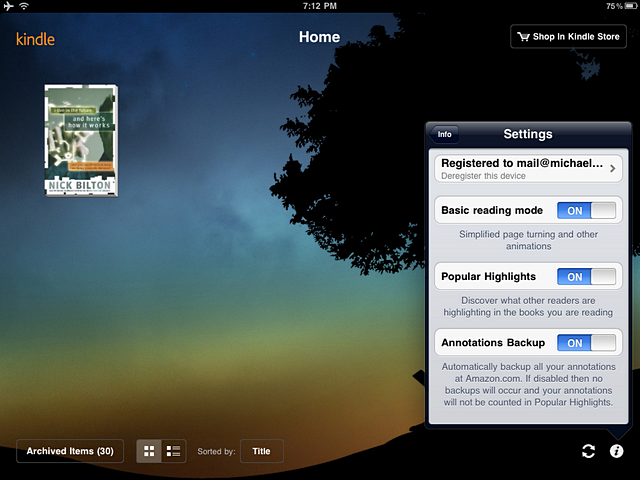
From the lower left corner of the home page, click the “info” icon to start up the Settings menu. There are only three options but I highly recommend to turn on the “Basic reading mode”. It means it will not use the page turning effect when you touch the left / right hand side margin, but just sliding the pages.

Download the dictionary

By installing the Kindle for iPad application, the dictionary is not downloaded (it is however come as a standard in Kindle). All you need to do is to “touch” any one word from any eBook, and hold it for a while, then a dialogue will be popped up and ask you to confirm to download the dictionary.

Change the view options

It’s probably the most important part of this mini survival guide. One of the key problems to use iPad as eBook reader is the fact your eyes will get tired easily just by viewing the beautiful screen continuously, so we need to tune the screen to make it pleasant to look at.

In any page of your eBook, touch screen, and select “Aa” in the bottom menu to start up the View Options menu. What I did is changed all the four options – set the right character size and brightness that fit your reading environment. Set the background to black color, and lastly set it to single column reading (it’s better than two columns when you use your iPad 2 sideways, since you’re probably using the Smart Cover).

Hope the above helps a bit to your reading with Kindle for iPad. Enjoy !

Close encounters of the third kind

According to the Hynek’s scale, first encounter is an event about sighting one or more unidentified flying objects (UFOs). And in my case, I encountered an unidentified computing objects (UCOs, i.e. computers) 30 years ago and it’s unidentified because those computers are housed in a large room, behind a thick wall and we could use it only through an “operator window” and with a deck of punch-cards.

Then for the second encounter – it’s an observation of UFOs, associated with physical effects like heat, interference with TV / radio reception and lost time. So obviously, my second encounter of computers were the desktop (in mid 1980s) and laptop computers (early 1990s). I could feel the heats, noises generated from the computers and of course I lost thousands of hours with these devices.

Fast forward to year 2011, third encounter is about some “intelligent communication” with “extraterrestrials” and “aliens”. I guess it is pretty clear, the smartphones, eBook readers and tablet computers are aliens to many and those all require intelligent communications if one wants to master one of these.

So, what’s the latest aliens ? It’s the iPad 2 … thinner, lighter, faster, last longer than the original iPad, and it even come in white color. But how is it compare to Kindle as a reading device ? In my view, iPad 2 is the best all-purpose tablet device in the market. It is so good that you will spend all the time (i.e. lost more hours) with the wonderful apps from the iTunes store, and therefore … you won’t spend quality time at all to READ.

So … for book reading, go for Kindle, no matter you like to read it under bright sun or not.

Kindle vs iPad 2