Reading PDF documents in Kindle 2

Other than ebooks, lots of people want to read PDF documents in their Kindle 2 / Kindle 3. However, since the Kindle 2 cannot display PDF documents natively (Kindle DX can do that however), the big question to many Kindle 2 owners is therefore how to make it work ? One simple answer is to use the conversion service by Amazon.com, however this method is not the best one. I hope this blog post can provide a good answer to some of you.

1. Let Amazon.com do it for you

As mentioned, Amazon.com offers a service to let you just do that. You send your file to your Kindle email address and after a few minutes, Amazon will send the converted file (with .azw extension) to you (via Whispernet). It cost some money to do that, or if you want to do it free, send your PDF document to the free Kindle email address. With this approach you can also save the file and transfer to your Kindle 2 with the USB cable – i.e. it works prefectly if you’re outside US. The only trouble with this method is the converted file is actually not easy to read at all … if your PDF document is full of graphical images and illustrations.

2. Hack your Kindle 2 to do it

Yes, you can hack your Kindle 2 to convert PDF document automatically … just install the Savory tool by Jesse Vincent. This tool converts every page of the PDF document into images and you can read it in portrait or landscape modes.

I like Jesse’s implementation a lot, but I don’t want to hack my Kindle 2 … and I don’t like to uninstall the hack before every software upgrade.

3. Convert to Mobi file format

Kindle 2 supports many formats such as .Mobi, .prc and .txt format, so you can also install file conversion programs to convert your PDF document to .Mobi files. I tried this before with the Calibre opensource tool. And there is another tool from MobiPocket.com that can do this as well. Unfortunately, the converted PDF document looks pretty much like the .azw format – i.e. not that readable for image-heavy PDF documents.

4. Convert to images without hacking your Kindle 2

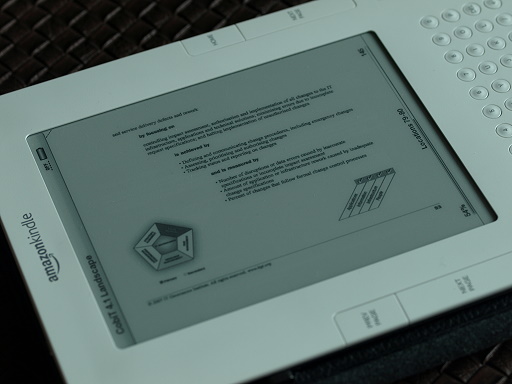
That method is similar to the second approach above, but you don’t need to hack your Kindle 2. Just download the PDFRead 1.8.2 from the mobileread.com website, install it and convert your document with the profile parameters (check image below). Transfer the converted document (a .prc document) to your Kindle and it’s done. The upside of this approach is the very readable output (including Chinese document as well !!). The downside is you cannot perform text search with this image-based document, and many times you need to zoom in to read the details.

Check the images below …  hope you find this useful and enjoy your PDF documents.

Update 1: Amazon announced a firmware update to support native PDF reading in Kindle 2. Check my blog post for the step by step upgrade procedure.

Update 2: Amazon also announced Kindle firmware 2.5 to cover PDF Pan and Zoom.

Update 3: Get your Kindle 3 to have all the PDF functions.
Update Kindle software outside US

If you know how to download Kindle books to your Kindle, then it is not difficult to update the Kindle software at all especially you can find the detail instructions in Amazon.com website (after sign into Amazon, select Kindle > Kindle Support > Kindle Software Update).

I upgraded mine but I found that there are one or two steps not the same as in the Amazon page, so here is my version of the steps (some important steps are boldfaced):

  1. First verify your current version with this steps – From your Kindle, click Home Key, Menu Key, select “Settings”, check the version in the bottom status bar. In my case it reads Version: Kindle 2.0 (29133xxxx).
  2. Since we are outside the wireless service area and therefore cannot receive the software update wirelessly, we need to download the latest software to our computer and transfer it to our Kindle via USB.
  3. Before the download, you have to check whether the latest version (2.0.3 as of May 2009) is available to you – as Amazon rolls out the software update to the Kindle users batch by batch. You can check that also from the Software Update page, scroll down and you shall see what software version is available for you to download. If it shows 2.0.2, then it’s not the latest version.
  4. Then in the same page, download the latest software – make sure you pick the Kindle (2nd generation) and the latest version is 2.0.3 (i.e. this is available to your device to upgrade).
  5. Follow the steps as in the Kindle software update page to connect the Kindle, transfer to Kindle, disconnect Kindle etc.
  6. With your Kindle, press the Home Key and then Menu Key, then select “Settings” from the Home menu.
  7. From Settings screen, press Menu Key again, select “Update Your Kindle”. Please note that this menu option will be grayed out if the most recent update has already been installed.
  8. Select “Ok” when prompted if you want to perform an update.
  9. Next you will see system message and progress bar to report the update status. The Kindle will also reboot itself to bring back to the home page.

That is it. Press Home Key, Menu Key and “Settings”, you shall see the latest Kindle version in the status bar … in my case. Version: Kindle 2.0.3 (32761xxxx).

Kindle 2 vs. Kindle DX

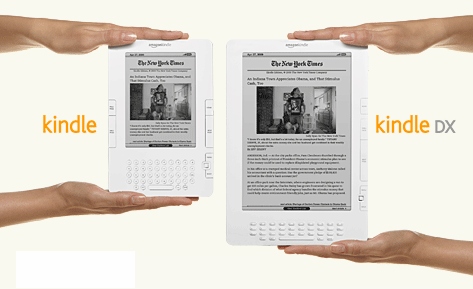
As a Kindle 2 owner outside US for just two months, what’s the impact of the new shiny Kindle DX ? Now, here are my takes:

The Good

  1. The new Kindle DX reads PDF files natively – that’s the only reason I will consider to buy the Kindle DX – if I buy one.
  2. The screen auto-rotates the document you’re reading as you turn the device.
  3. The screen is bigger, a lot bigger.
  4. Now the device can store up to 3,500 books and documents.
  5. The keyboard is now better, I think … the Kindle 2 keyboard is really hard to type.

The Bad

  1. The new Kindle DX reads PDF files natively – but of course the PDF file is still a 16 gray document. When was your last time read a black & white PDF document ?
  2. The screen auto-rotates the document you’re reading as you turn the device. Seriously, I don’t think it is good for reading books, especially the menu / next page buttons are now all positioned on top. I think it is good for viewing web page though, since you already get used to view web pages in landscape mode. However, there is no use to me as we cannot use Kindle to surf, outside US.
  3. The bigger screen is good, especially you read lots of full size PDF files, magazines and newspaper. But I don’t need big device because I use my Kindle mainly in subway, buses, planes and cafes. In addition, we cannot subscribe to magazines and newspaper outside US (which needs the Whispernet to download).
  4. Now the device can store up to 3,500 books and documents – but why ? Imagine you need to use the Search function to find your books, from now on.
  5. Somehow, there is no previous / next buttons in the left hand side of the device. If you’re a lefties, hard luck.

The Ugly

  1. I don’t see why I want to pay US$500 for a eBook reader. Assuming there will be another new Kindle in two years, and I can save 10 dollars from every Kindle book … it means I shall read 50 books in two years to pay for the Kindle DX. Don’t think I can do it, really.

What’s your view ?

kindle-kindle-dx

Registering Kindle 2 from outside US

The short answer to that task is “No, you cannot do that”. And following is the long answer and how I did it a couple of days ago in a trip to US. (See also the Update 1 below)

You cannot register your Kindle 2 (click Settings in Home / Menu) outside US, as it works only wirelessly with Sprint network in US. And even you can hack your Kindle to connect to Internet (without the Sprint network), the built-in GPS in Kindle 2 will reject the registration. In other words, you need to fly to US or ask your friend to take your lovely Kindle 2 to US to do it for you.

But still, without registering your Kindle 2, you still can buy eBooks and read those without any problems.

Anyway, I did register mine in a recent trip to US, and here are the details. I arrived San Francisco airport and I took out my Kindle 2, switched it on, turned on the Whispernet and tried to register.

Surprisingly, the device registered itself (I thought I needed to enter the Amazon membership information). And my Kindle also downloaded the previous sample reading, downloaded Jeff Bezos welcome letter and even whispersync my other book I was reading with my Kindle for iPhone. Freaking brilliant.

Then I started the Kindle shop from within the Kindle 2, searched the book I want (Quiet Strength), clicked Go and bought a book. Within a minute, my Kindle 2 homepage shows the new book. It’s that easy. The only thing I thought it could improve was it should have indicated that the book has been downloaded – as just from the name in the homepage, I could not tell (from user experience point of view) whether the Kindle was downloading a book, or already finished the download. Anyway, I browsed the new book a bit and confirmed all chapters were there.

So, my Kindle 2 is kinda completed all the basics, the next frontier is to hack the Kindle 2. Stay tuned.

Update 1 : If you really want to register your email address, Kindle name etc. to your Kindle – without Whispernet, here is a trick … create a reginfo file and copy it to your Kindle (for expert only though …. I warn you here).

Kindle for iPhone from outside US

Yes, after getting the Kindle 2 and buying Kindle books from outside US, the logical next step is of course getting the Kindle for iPhone. As in my other blog posts, here are the steps:

  1. To prepare for it, you need a new email address (other than the one you registered to iTunes) from Gmail, Yahoo etc. In other words, don’t use an email address with a country suffix.
  2. Connect your iPhone, kick start the iTunes and sign out from the default email address (Apple ID) by clicking the email address button in the upper right corner of the iTunes.
  3. Go to iTunes Store homepage, scroll down to the bottom and then change the country to United States.
  4. Search for Kindle for iPhone in that US iTunes store, and click the “Get App” button.
  5. When you see the sign in screen, do not sign in. Instead click “Create New Account”.
  6. Register as usual but in the Payment Method Page, click “none” as the method … that means you can download free application only in the future, but it avoids the issue of getting an US based credit card. (I suppose the Paypal will work as well, but I have not tested it).
  7. Then enter the US Address and phone number that generated before.
  8. That’s it !! You created a iTunes new account with your email as the new Apple ID !!
  9. Make sure you click the link in the iTunes Store Account Verification email to activate your account.
  10. Now you should be able to download the Kindle for iPhone application and synchronize to your iPhone.
  11. Run the application in your iPhone and enter your Amazon account information. And you shall see the Kindle eBook you bought before !!

Note : Since there is no Whispernet here, therefore the Whispernync may not work. In other words, you may not able to switch back and forth between your Kindle and your Kindle for iPhone, and each will keep track of where you’ve stopped reading. But you can download the books from your Amazon archive and read it in iPhone. Enjoy !!

Update 1 : In step 7, I reckon since you don’t need a real physical address to ship anything, so may be all you need is to get any US address and corresponding phone number … even the White House address shall work. Just a thought.

Here is the proof : The books I bought so far …

Kindle for iPhone