From Kindle 2 to Kindle Touch (Kindle 4)

I seldom upgrade my gears even the gears’ new version / generation are released, instead I always skip one generation between each upgrade. That applies to my M4/3 cameras, iPhone, iPad and of course the Kindle as well. My previous Kindle is a white color Kindle 2, and I skipped the very good Kindle 3 (now the Kindle Keyboard) but waited for the Kindle Touch. So, the day Amazon made the Kindle Touch available to customers outside US like us, I ordered the fourth generation Kindle and the Lighted Leather Cover

Kindle 2 and Kindle Touch

Without a keyboard like Kindle 2 / 3, the Kindle Touch is very small and lightweight. And with the same reason, you need to touch the screen to turn pages and change any settings … quite frankly touching the screen to action is not as easy as pressing a button in previous Kindle verions. However the E Ink display is still very good for reading.

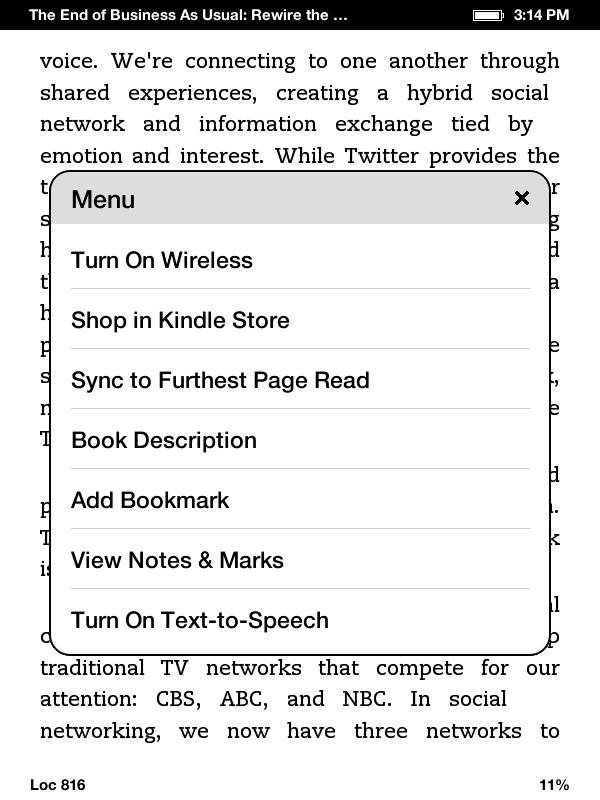
One thing I note from this latest Kindle is the menu options will change depends on what you’re doing – for example, the menu in the main homepage is different with the one while you’re reading and in the Settings screen. Anyway, first few things you need to do after you receive your Kindle Touch:

  1. From the home screen (the book list screen), press the Menu button in upper right, and turn on the Wi-Fi (“Turn On Wireless” option). If needed, in the same menu, select “Settings” and use the “Wi-Fi Networks” option to connect to the right Wi-Fi Access point.
  2. Then register your Kindle with the “Registration” option in the “Settings” screen.
  3. Set the password of the device, the time and personal information with the “Device Options” in the “Settings” screen.
  4. You can also set the social network through the “Reading Options”
  5. Once connected, and registered, go back to the home screen and you shall be able to download all the books to the new Kindle one by one.

I also tried the Kindle Shop (the shopping cart icon on top) and bought my first ebook for the new Kindle Touch – Likeable Social Media: How to Delight Your Customers, Create an Irresistible Brand, and Be Generally Amazing on Facebook (& Other Social Networks)

Lastly, in case you want to take some screenshots of Kindle like what I did for this blog post, all you need to do is to hold the home button for a while and then tap the screen. The screenshot in GIF format will be stored in the root directory of the Kindle where you can copy to your PC once connected via the USB cable. Hope it helps.

Enjoy !!
Third annual report of a tiny, little blog

I started the annual reporting of this tiny blog since 2009, and I found it is a very good way to tell how the blog compare to previous year. The first thing I found is I blogged a lot less in year 2011, in fact I posted only half as many posts as in year 2010. And therefore, the blog also sold only 76 various models of Kindles (33% less compare to previous year).

As usual, people bought many other stuff from Amazon thru the site, for examples:

However, the most funny products sold in the last 12 months, definitely belonged to that pair of Freudian slipper and naked coconut water


Same time next year, another annual report is waiting for you.

Life in the fast lane

Once in a while I have nothing to blog.

No more Kindle posts, no more photographs or camera gears, no more gadgets and of course, no more cloud computing stuff (guys and gals, we are tired of keep talking about cloud computing, by someone who have not implemented any cloud computing platform before).

I suppose I can also write something about SoMoLo (or SoLoMo … whatever you like it) apps, something about Liquid Newsroom Project, something about the latest Open Mobile Summit in San Francisco, or even why my iPhone 4 battery runs out faster with iOS 5.0.1; still, my mind is blank.

Then I finally find out the reason this morning … if something is really important to blog, I will tweet it, Facebook it, Google+ it … but if something is not that really important to blog, I will just leave it aside – till one day, I forget all about it.

Technology and mobility do not make us more productive, it just make our life run faster – without any goal.

“Life in the fast lane, surely make you lose your mind.” – Eagles

All new Kindles – Kindle 4th Generation, Touch, Touch 3G and Fire

Guess you know all about the new Kindles from the search engines, technical blogs etc. But what you probably don’t know are the impacts to you – if you’re a Kindle 2 / 3 owners, iPad owners or not living in USA. OK, here you go:

Your Kindle 3 is now named Kindle Keyboard or Kindle Keyboard 3G. The new prices are US$ 99 and US$ 139 (with sponsored screensavers) … but they are still selling at US$ 139, and US$ 189 for non-USA customers.

The Kindle 4 is now just called Kindle. This is a basically keyboard-less Kindle 3 but with only 2G of RAM (Kindle Keyboard has 4G RAM). It costs only US$ 79, but US$ 109 for non-USA customers. It’s also 30% lighter, 18% smaller and supports WiFi only. It supports six languages now – English (US and UK), German, French, Spanish, Italian, or Brazilian Portuguese. Since the Kindle now doesn’t have a physical keyboard (and the next / previous page buttons are very “low profile”), but at the same time it is not a device with touch screen – you need to use the non-QWERTY virtual keyboard and use direction keys to “type”.


And what about the new Kindle Touch

The Kindle Touch is 8% lighter, 11% smaller than Kindle 3 and of course with a 6″ touch screen to turn pages (it’s called “EasyReach”). There are also one new feature – X-Ray. According to Amazon, this feature “Explores the bones of a book. With a single tap, see all the passages across a book that mention ideas, fictional characters, historical figures, places or topics of interest, as well as more detailed descriptions from Wikipedia and Shelfari.” Yes, don’t really know what it is … I think we have to see it to believe it.

Another significant feature is the new Kindle Touch now support the display of non-Latin characters, including Cyrillic (such as Russian), Japanese, Chinese (Traditional and Simplified), and Korean characters, in addition to Latin and Greek scripts.

The Touch has a Wi-Fi version (US$ 99 with special offers) and a Wi-Fi / 3G version (US$149 with special offers). But guess what ? It is available for U.S. only. Looks like I need to use the tricky method to get it.

Kindle Fire

Lastly, the really cool Andriod-based, colorful, dual-core processor Kindle Fire. Cost only US$ 199 and (also) available in U.S. only, it is really the cloud-enabled device. It includes a cloud-accelerated browser – Amazon Silk, free cloud storage, streaming of songs and videos. In addition, similar to Amazon’s Whispersync technology to automatically sync your library, last page read, bookmarks, notes, and highlights across your devices. On Kindle Fire, Whispersync extends to video. Start streaming a movie on Kindle Fire, then pick up right where you left off on your TV – avoid the frustration of having to find your spot. Not a new technology but it sounds like really easy and as smooth as silk.

iPad-like screen, 100,000 movies and TV titles, runs Android apps, free cloud services, 17 million songs … hey, it is really as good as iPad and a great tablet.

So which one will you get ? I will probably go for Kindle Fire.

(Check out other Kindle related posts for evaluations, tips and tricks)

Kindle Cloud Reader review

Before I shamelessly promote myself as a big fan of Kindle Apps, I better tell you that I am also a big fan of Kindle eBook reader. I really love the Kindle Apps as it works very well in tablets like iPad (I think people just use the term “iPad” instead of tablet anyway). Therefore when I know Amazon released the Kindle Cloud Reader, I have to review it …I set up the Cloud Reader without any problem, but it’s not that intuitive to set up your library for offline reading … anyway, here is the full details (with photos by the end of that blog post) of that new offering from Amazon.

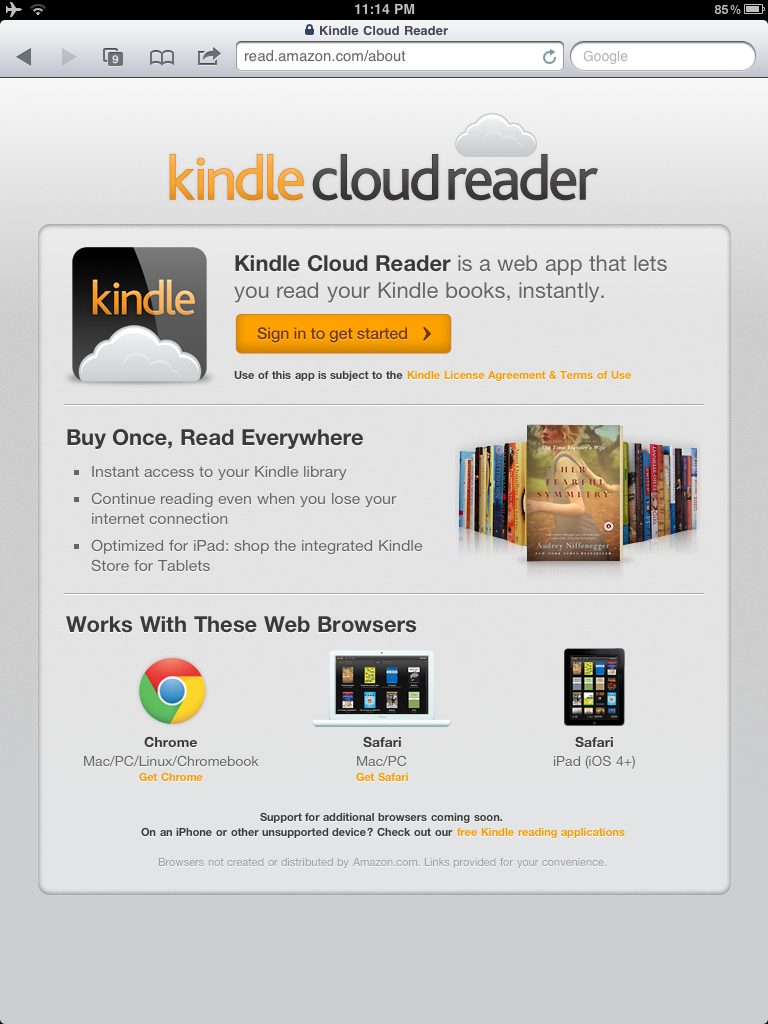
  1. First of all, go to the homepage of Kindle Cloud Reader. Click the “Sign in to get started”, then sign in with your Amazon account credential in the next screen. That step will then kick start the Kindle Cloud Reader web application, and show you all the eBooks you have purchased for your Kindle.
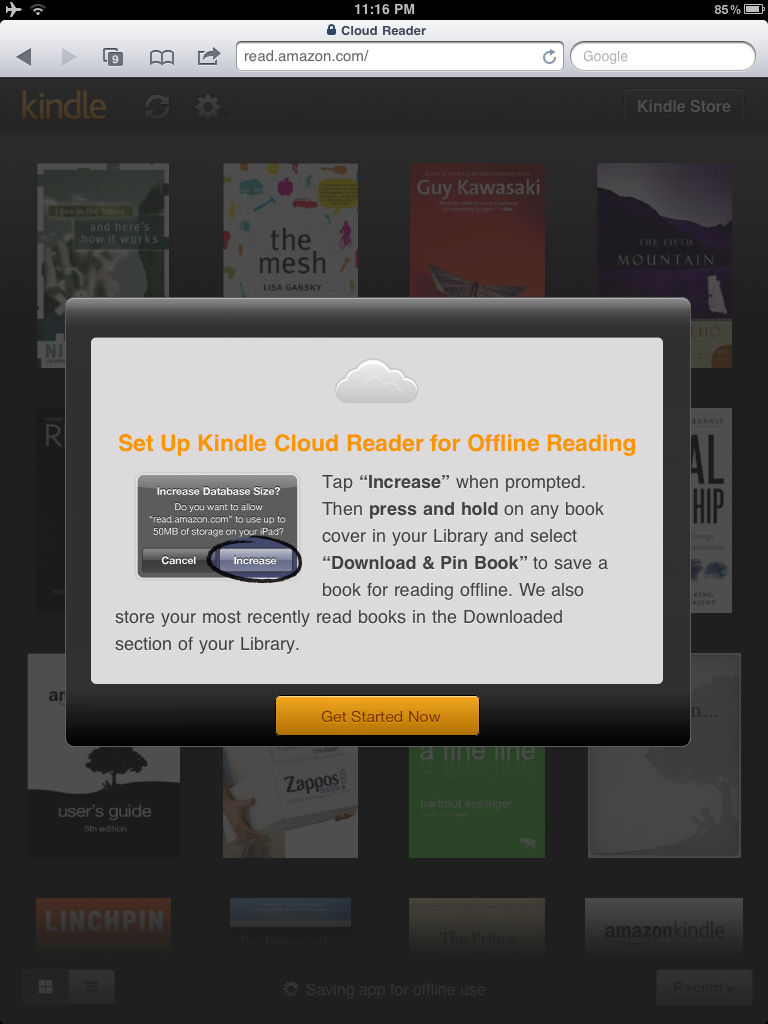
  2. Next step is to increase the local database storage size (up to 50 MBytes) so that the application can save your books to your iPad (or other devices) for offline reading. And here is the tricky part, the application will also try to save the apps for offline use, and you will see that message “Saving app for offline use” in the bottom of the screen.
  3. In many cases, that step will return an error message stating “Error saving app. Tap here to try again“. If you encounter this, go to your iPad setting page and clear the cache of Safari and repeat the steps above again. The saving shall then be successful.
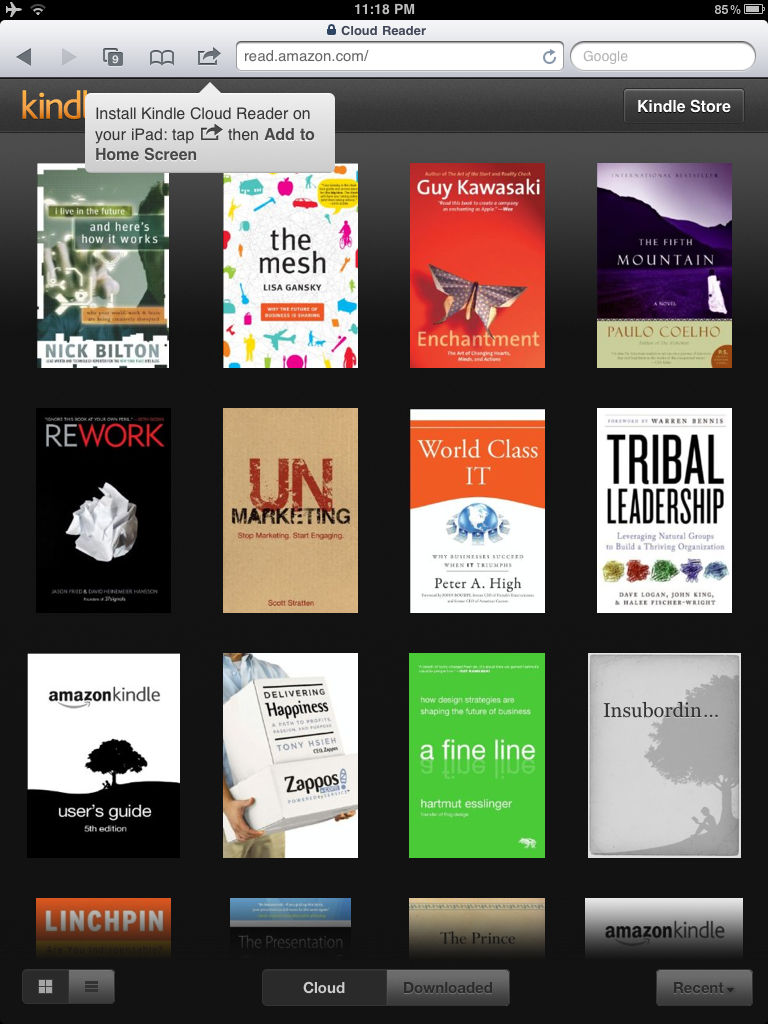
  4. Then add the apps to home screen. Change name to whatever you like and add to home screen
  5. Other than the Book grid view, you can also see the Book list view. You can toggle the views from the lower right corner selection buttons.
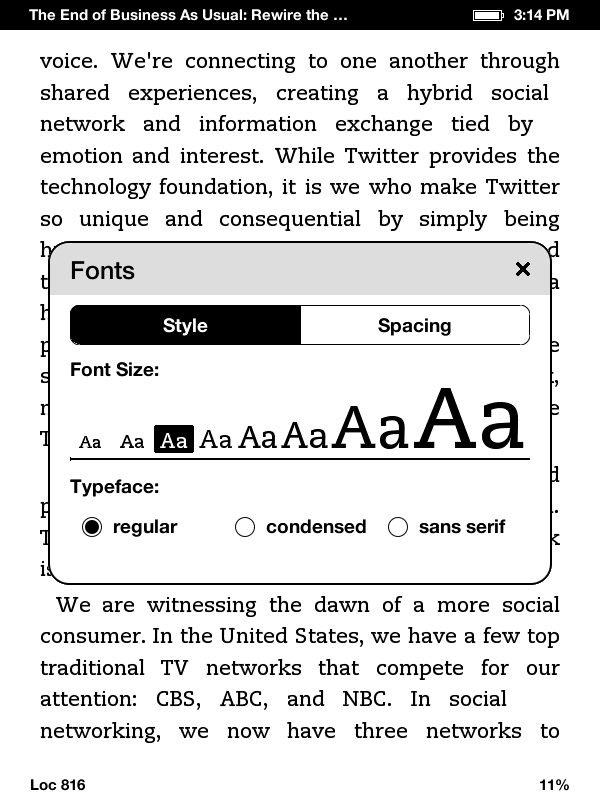
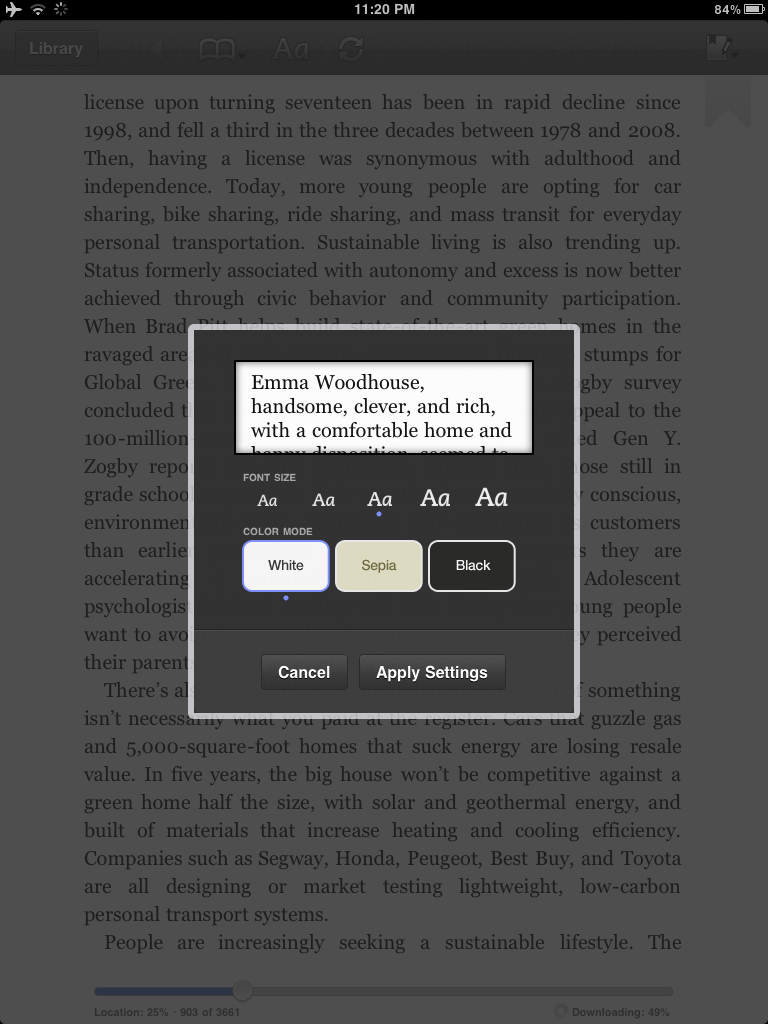
  6. Same as the Kindle for iPad apps, you can change the settings like font size, color mode.
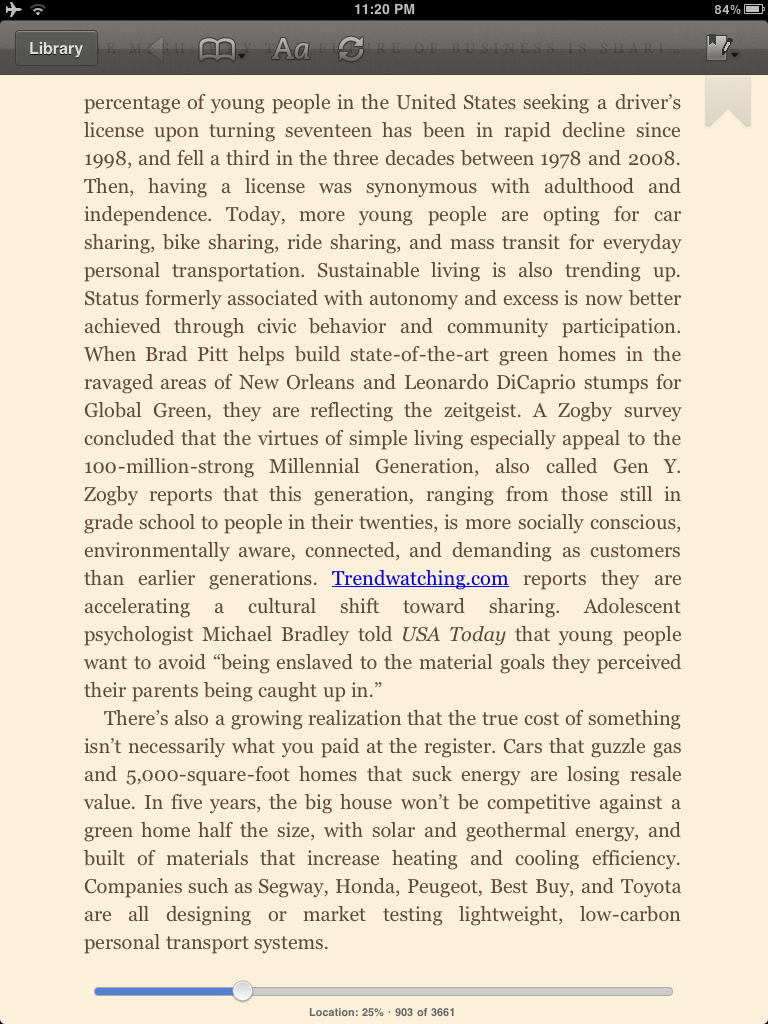
  7. Click any book and you can start reading, and it works pretty much like Kindle for iPads.
  8. Now, try exit the apps and start the cloud reader again.
  9. If you have not saved the app for offline use successfully (see step 2 and 3 above), you will be greeted with that error message “Cloud Reader could not be opened because it is not connected to the internet“.
  10. To really read the books offline, you need to press and hold any book cover in your library, then select “Download & Pin Book.”
  11. After the download, you will see the books are “Pinned” with a green color pin icon underneath the downloaded book and ready for offline reading !!
  12. And lastly, there is the Kindle shop such that you can buy books directly within the web apps (if you’re online).

After all these set up, you can read the book as any Kindle apps … with three exceptions:

  • You cannot currently create new notes and highlights using Kindle Cloud Reader – but notes and highlights you create while reading the book on your Kindle or another Kindle app will be displayed.
  • There is no built-in dictionary (I missed it a lot !!).
  • It still feels a bit slower than Kindle reader and Kindle apps.

Hope you find this review useful !!