That’s what matters to me …

No, Apple II was not my first personal computer, it was the Commodore 64.

No, iPod was not my first portable music player, it was a Aiwa portable tape player.

No, Macbook Pro was not my first laptop computer, it was a Toshiba Portégé.

No, iPhone was not my first smartphone, it was Dopod C730.

No, iPad was not my first tablet, it was Amazon Kindle.

And no, Steve Jobs was not my first idol, my dad is.

But just imagine the modern days without Jobs, Apple II, iPod, MacBook, iPhone and iPad. And imagine the days without mouse, GUI, touch screen gesture …

Remembering the man who behind all these, and who made “IT” stands for “Innovation, Transformation”.

“Being the richest man in the cemetery doesn’t matter to me … Going to bed at night saying we’ve done something wonderful… that’s what matters to me.” – Steve Jobs

All new Kindles – Kindle 4th Generation, Touch, Touch 3G and Fire

Guess you know all about the new Kindles from the search engines, technical blogs etc. But what you probably don’t know are the impacts to you – if you’re a Kindle 2 / 3 owners, iPad owners or not living in USA. OK, here you go:

Your Kindle 3 is now named Kindle Keyboard or Kindle Keyboard 3G. The new prices are US$ 99 and US$ 139 (with sponsored screensavers) … but they are still selling at US$ 139, and US$ 189 for non-USA customers.

The Kindle 4 is now just called Kindle. This is a basically keyboard-less Kindle 3 but with only 2G of RAM (Kindle Keyboard has 4G RAM). It costs only US$ 79, but US$ 109 for non-USA customers. It’s also 30% lighter, 18% smaller and supports WiFi only. It supports six languages now – English (US and UK), German, French, Spanish, Italian, or Brazilian Portuguese. Since the Kindle now doesn’t have a physical keyboard (and the next / previous page buttons are very “low profile”), but at the same time it is not a device with touch screen – you need to use the non-QWERTY virtual keyboard and use direction keys to “type”.


And what about the new Kindle Touch

The Kindle Touch is 8% lighter, 11% smaller than Kindle 3 and of course with a 6″ touch screen to turn pages (it’s called “EasyReach”). There are also one new feature – X-Ray. According to Amazon, this feature “Explores the bones of a book. With a single tap, see all the passages across a book that mention ideas, fictional characters, historical figures, places or topics of interest, as well as more detailed descriptions from Wikipedia and Shelfari.” Yes, don’t really know what it is … I think we have to see it to believe it.

Another significant feature is the new Kindle Touch now support the display of non-Latin characters, including Cyrillic (such as Russian), Japanese, Chinese (Traditional and Simplified), and Korean characters, in addition to Latin and Greek scripts.

The Touch has a Wi-Fi version (US$ 99 with special offers) and a Wi-Fi / 3G version (US$149 with special offers). But guess what ? It is available for U.S. only. Looks like I need to use the tricky method to get it.

Kindle Fire

Lastly, the really cool Andriod-based, colorful, dual-core processor Kindle Fire. Cost only US$ 199 and (also) available in U.S. only, it is really the cloud-enabled device. It includes a cloud-accelerated browser – Amazon Silk, free cloud storage, streaming of songs and videos. In addition, similar to Amazon’s Whispersync technology to automatically sync your library, last page read, bookmarks, notes, and highlights across your devices. On Kindle Fire, Whispersync extends to video. Start streaming a movie on Kindle Fire, then pick up right where you left off on your TV – avoid the frustration of having to find your spot. Not a new technology but it sounds like really easy and as smooth as silk.

iPad-like screen, 100,000 movies and TV titles, runs Android apps, free cloud services, 17 million songs … hey, it is really as good as iPad and a great tablet.

So which one will you get ? I will probably go for Kindle Fire.

(Check out other Kindle related posts for evaluations, tips and tricks)

Kindle Cloud Reader review

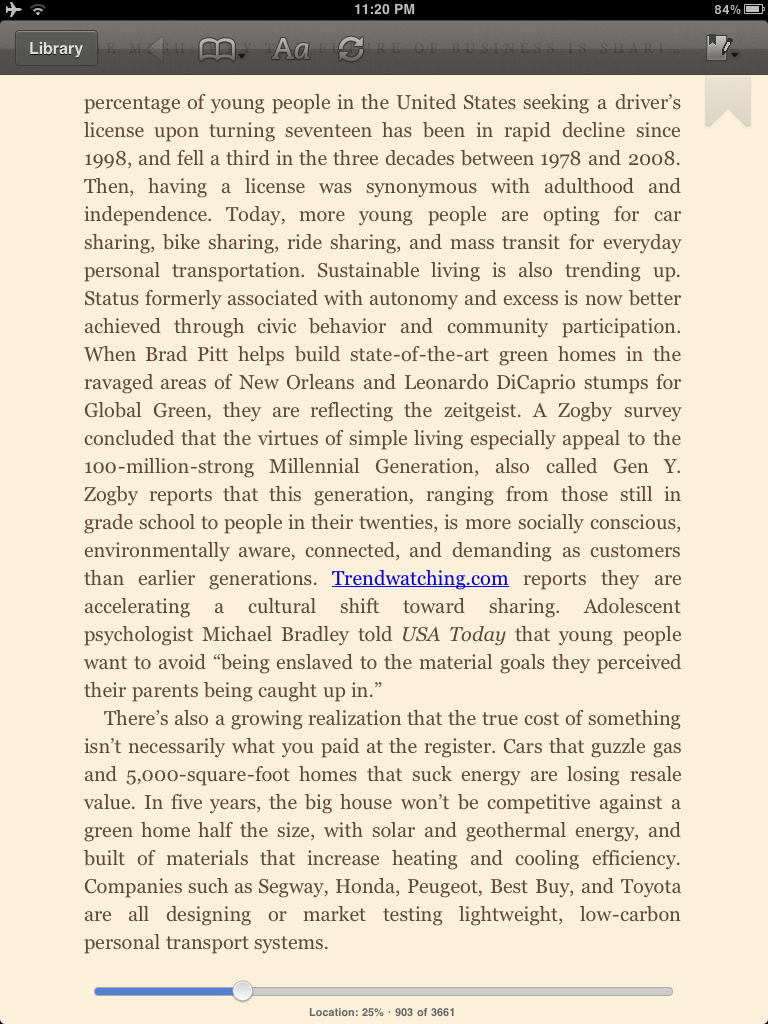
Before I shamelessly promote myself as a big fan of Kindle Apps, I better tell you that I am also a big fan of Kindle eBook reader. I really love the Kindle Apps as it works very well in tablets like iPad (I think people just use the term “iPad” instead of tablet anyway). Therefore when I know Amazon released the Kindle Cloud Reader, I have to review it …I set up the Cloud Reader without any problem, but it’s not that intuitive to set up your library for offline reading … anyway, here is the full details (with photos by the end of that blog post) of that new offering from Amazon.

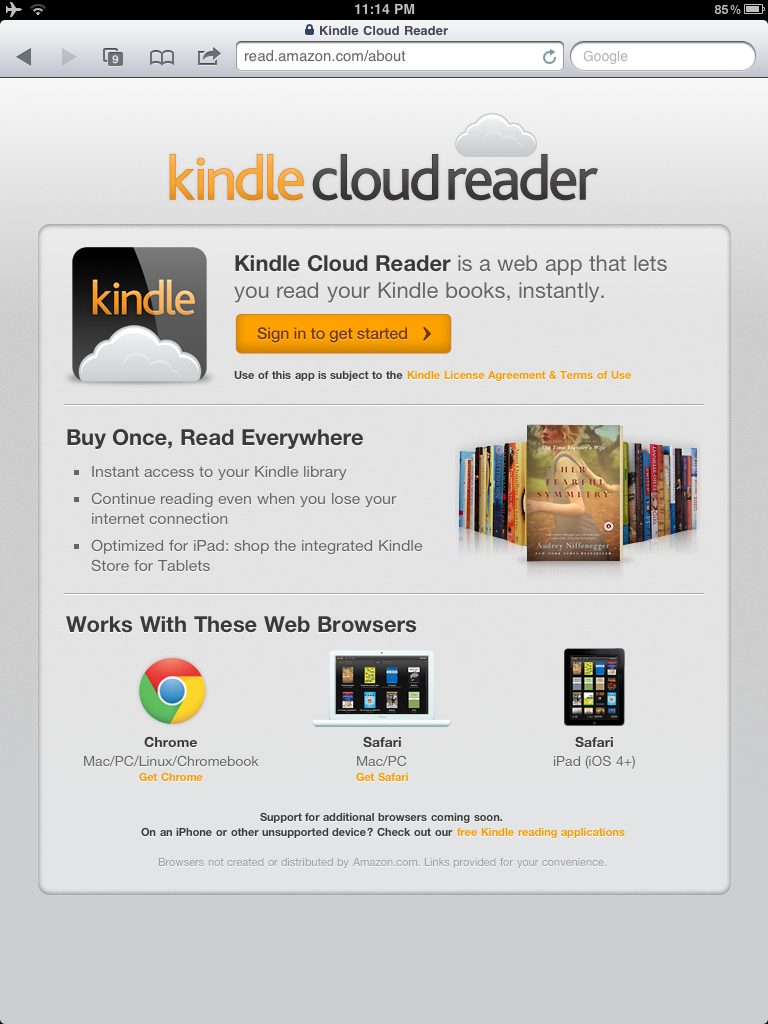
  1. First of all, go to the homepage of Kindle Cloud Reader. Click the “Sign in to get started”, then sign in with your Amazon account credential in the next screen. That step will then kick start the Kindle Cloud Reader web application, and show you all the eBooks you have purchased for your Kindle.
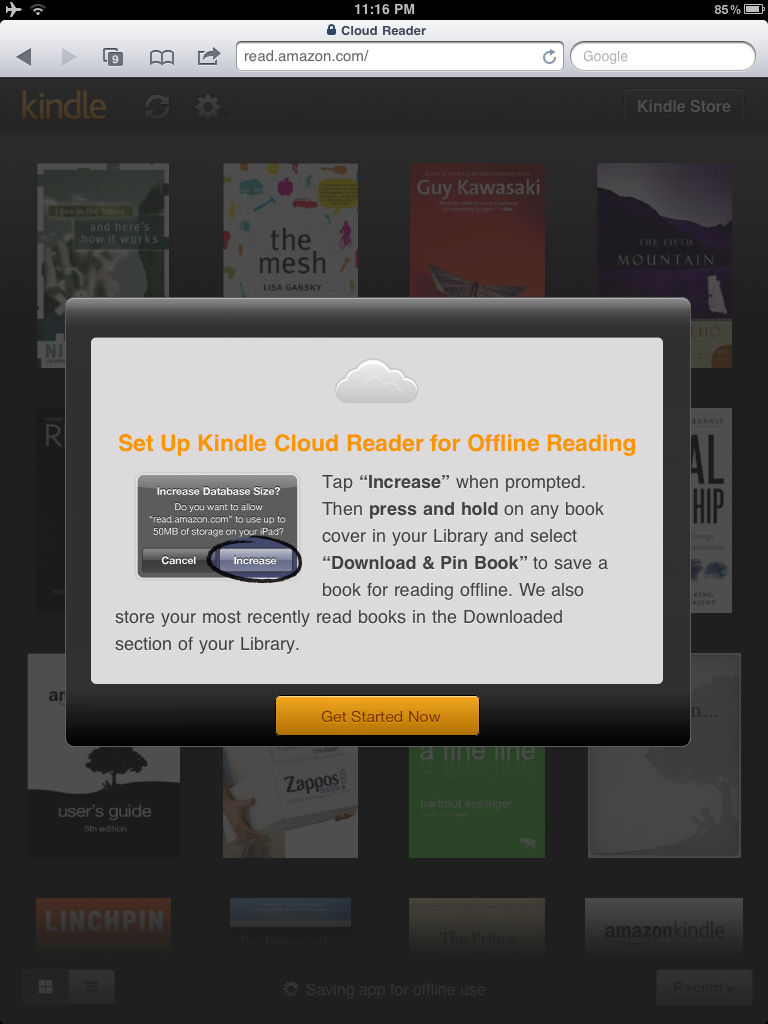
  2. Next step is to increase the local database storage size (up to 50 MBytes) so that the application can save your books to your iPad (or other devices) for offline reading. And here is the tricky part, the application will also try to save the apps for offline use, and you will see that message “Saving app for offline use” in the bottom of the screen.
  3. In many cases, that step will return an error message stating “Error saving app. Tap here to try again“. If you encounter this, go to your iPad setting page and clear the cache of Safari and repeat the steps above again. The saving shall then be successful.
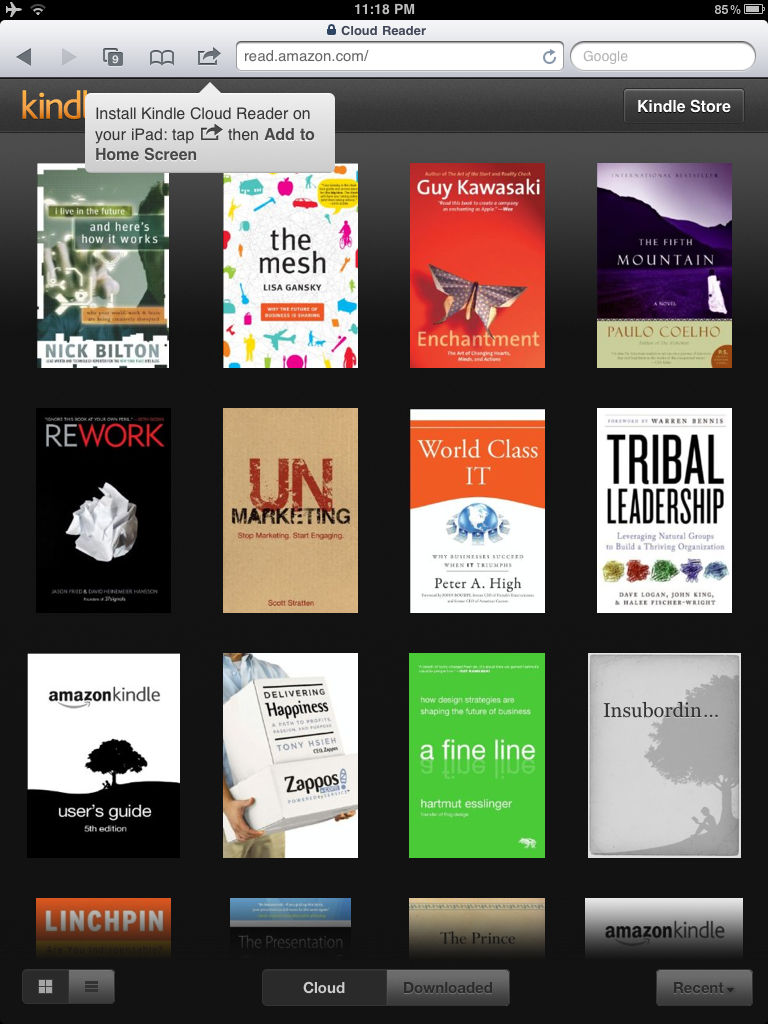
  4. Then add the apps to home screen. Change name to whatever you like and add to home screen
  5. Other than the Book grid view, you can also see the Book list view. You can toggle the views from the lower right corner selection buttons.
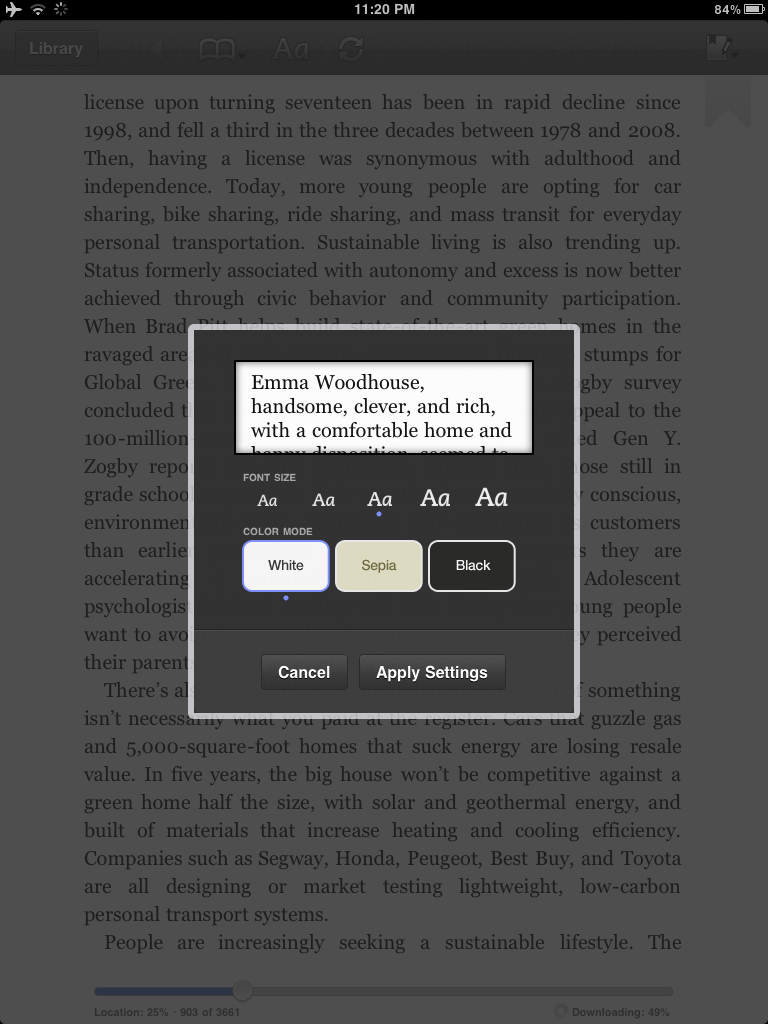
  6. Same as the Kindle for iPad apps, you can change the settings like font size, color mode.
  7. Click any book and you can start reading, and it works pretty much like Kindle for iPads.
  8. Now, try exit the apps and start the cloud reader again.
  9. If you have not saved the app for offline use successfully (see step 2 and 3 above), you will be greeted with that error message “Cloud Reader could not be opened because it is not connected to the internet“.
  10. To really read the books offline, you need to press and hold any book cover in your library, then select “Download & Pin Book.”
  11. After the download, you will see the books are “Pinned” with a green color pin icon underneath the downloaded book and ready for offline reading !!
  12. And lastly, there is the Kindle shop such that you can buy books directly within the web apps (if you’re online).

After all these set up, you can read the book as any Kindle apps … with three exceptions:

  • You cannot currently create new notes and highlights using Kindle Cloud Reader – but notes and highlights you create while reading the book on your Kindle or another Kindle app will be displayed.
  • There is no built-in dictionary (I missed it a lot !!).
  • It still feels a bit slower than Kindle reader and Kindle apps.

Hope you find this review useful !!

Google+ as the communication platform

First of all, a disclaimer, I am not a big fan of Google … even though I am / was an user of their Gmail, Search Engine, AdSense, Google+, Maps, Earth, Picasa, Wave, Buzz, Lively, Analytics, Webmasters, Docs, Apps etc. etc. I am just a big fan of innovative products, and Google is one (a big one though) of many companies that developed many innovative solutions. For example, Apple, Facebook, Twitter, Foursquare, and even Microsoft, just to name a few.

The recent launch of Google+ from Google however make me think twice about what I can do with it. Is it a “social network” to post my opinions, share my photos, chat with friends ? Or is it a copycat of Facebook or Twitter ? Or is it a whole new Internet communication platform ?

It’s too early to answer these questions of course, but just from the way it “Share what’s new” to the way to show the various “Streams” I think it is a new communication platform. Let’s have a look:

One Google+ user, Mike Elgan, posted the following the other day:

Instead of saying, “I’m going to write a blog post now,” or “I’m going to send an e-mail” or “I think I’ll tweet something” you simply say what you have to say, then decide who you’re going to say it to.

  • If you address it to “Public” it’s a blog post.
  • If you address it to “Your Circles” it’s a tweet.
  • If you address it to your “My Customers” Circle it’s a business newsletter.
  • If you address it to a single person, it can be a letter to your mother.

I can further add / fine-tune the followings:

  • If you address it to your “Company” Circle it’s a company newsletter.
  • If you address it to “Public” and limited it to 140 characters, then it’s a tweet.
  • If you address it to “Your Circles” it’s like a Facebook status update.

Other than sending, the different ways you show the “streams” also means different approaches of modern days’ communication. For example,

  • show the streams from “Friends” circle is like the wall posts in your Facebook, and
  • show the streams from “Following” circle is like viewing an expanded version of all the tweets from Twitter.

And of course, I can do Hangout to have video chats with many friends at the same time, and I can have group messaging with Huddle with mobile apps. Lastly, with the Chrome browser extensions (e.g. G+ Count in Title, G+me and Start G+), the features of Google+ is keep expanding, fine-tuning and advancing.

Let me know how you use your Google+, and here is my Google+ account.

From the oldest to the newest

I was told many times by my friends that … “I would take better pictures, if I had a better camera.”, or “I would take better pictures, if I had a more expensive lens”. And of course, many of them said “All I need is a newer camera.”.

In the good old days, you know, a new camera took years to design and make, and then a few years to master, and another few years to make it break. But now camera manufacturers can roll out new cameras one after another every 6 to 9 months. One reason is one can design new cameras easily with all the tools, but another reason is because the consumers also want new cameras every few months.

So even though my favorite camera company, Olympus, spent just two years to rework their E-Px series … people think the company was too slow. Frankly, I don’t get it, I don’t see why you need the latest and greatest camera, to take good photos. Anyway, just yesterday, Olympus announces 3 new cameras (E-P3, E-PL3 and E-PM1), 4 new lens and dozens of accessories.

I am sure these are great cameras and can make magnificent photos. However, I am also sure my two years old E-P1 (the oldest camera in the M43 line) can still take good photos … like a few photos below from Las Vegas I took in May.

Will I buy the new E-P3 ?

Errrrh … yes, of course. I need a newer camera to take better photos … 😎