Kindle Apps for Tablet Computer (including iPad)

Ah, the Amazon development team is really efficient, just after a week from the release of Kindle for Mac they have another new product ready to roll out. Somehow the news is broken not from their official press release, but from a report in New York Times. This is the Kindle Apps for Tablet Computer, and it works on table computers including the iPad as well (obviously, they want people to know about this application, before the official launch date of iPad in early April).

Kindle Apps for Tablet Computers

Unlike other Kindle applications (iPhone, PC, BlackBerry, Mac), there are some new fancy features like:

  • Tailored to the size, look, and feel of your tablet computer
  • Adjust screen brightness from within the app to make reading easier
  • Page turn animation replicates the look of turning a page in a book. Or choose Basic Reading Mode for a simpler and unadorned reading experience

In the case of iPad version (assuming Apple will approve it …), the New York Times reports that:

“… large images of book covers are set against a backdrop of a silhouetted figure reading under a tree. The sun’s position in that image varies with the time of day.”

I know you want it, don’t you ? Check out the pictures and have a feel of this new application.

Kindle for Mac, now available

Yap, just one month after the beta version of Kindle for BlackBerry, today Amazon rolls out the Kindle for Mac. The features are similar to other free downloads like Kindle for PC and Kindle for iPhone. However, according to the press release

Several features will be added to the Kindle for Mac app in the near future, including full text search and the ability to create and edit notes and highlights. Kindle for Mac is available to customers around the world as a free download.

So I guess, we need to keep an eye on the future upgrade as well. You can download the free application from www.amazon.com/kindleformac. Will install it tonight to try it out …

Kindle for Mac

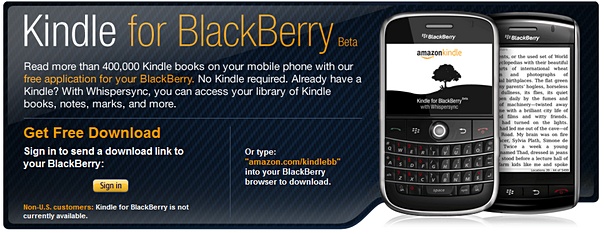
Kindle for BlackBerry (beta) is now available

After the Kindle devices, the applications Kindle for iPhone and Kindle for PC … now we have the Kindle for BlackBerry. The Kindle family is getting bigger and bigger. I can imagine soon we will have Kindle for Android, Kindle for OSX, Windows Phone Series 7 etc. etc. However, something new to me from their press release

  • Search and browse more than 420,000 books, including 102 of 112 New York Times Bestsellers, directly from their BlackBerry
  • Read books in full color, including children’s books, cookbooks, travel books, textbooks and graphic novels

Wow, 420,000 books !! And books in full color !! May be because I didn’t downloaded any cookbooks or travel books before, so I don’t really know whether my Kindle for iPhone and Kindle for PC have this function or not. Anyway, good news for all BlackBerry users.

Don’t forget to check out other Kindle posts !!

iPad vs. iPhone + Kindle

I use iPhone and Kindle 2 heavily and I also have iPod, MacBook etc. Even though I am not really a super fanboy of Apple … still, I thought a tablet from Apple is something I was waiting for, until I see the iPad today.

It’s thin, it’s beeeeautiful, and the user interface is certainly sleeeek. But wait, where are the new new things ? In fact,

  • There is no phone – sure, I can make VOIP phone call … but why ?
  • No camera – so no snapshots, no video phone conference / calls, no augmented reality applications,
  • No multitasking – I cannot download videos while I am doing something else,
  • No HDMI output – I cannot use it as the Youtube video station for my TV,
  • No Flash support – I guess I have to wait for HTML 5 websites … but again, why ?

You know, I thought Apple would announce a super new way to browse magazines and newspaper with iPad that can save the publishing industry, but no, again probably need to wait for some super-duper iPad application to do that. So is the iBooks really better than Kindle for iPhone ? Who knows …

And seriously, how can you hold this device for hours to read a book (my Kindle 2 can easily do that, and the battery can last for two weeks) ? And how can you take this from your home to your office, or your frequent coffee shop without adding a cover / bag ?

So far, really, I can think of only one big big reason to get one … that is if I want to share my photos with my friends and family, on the road.

Video from Engadget.com.

http://www.viddler.com/simple_on_site/51b063e8

Running Gmail with your Kindle 2

Imagine the following scenario …

  • You’re a stranger in a foreign land / airport;
  • Your smartphone is out of juice or you don’t want to pay hefty data roaming fee;
  • You cannot find a (free) WiFi hotspot for your laptop;
  • And you need to answer some emails via Gmail.

Sounds familiar ? Now you can do that if you have a Kindle 2 (or Kindle 3), as long as you can live with some constraints. As many of you already know, there is a very simple browser come with the Kindle 2, and there is a mobile version of Gmail with minimal graphics. Therefore, it makes sense to use that simple browser to access the simple web application. The constraints and preparation works are:

  1. It works only for countries / cities that support by Amazon Kindle 2’s WhisperNet  (the flip side of this is you don’t need to pay expensive data roaming fee to check emails !!)
  2. The screen of Kindle 2 is relative small;
  3. The keyboard of Kindle is hard to type;
  4. There is no scroll up and down function (you need to use Next Page and Prev Page keys);
  5. You cannot read / write double byte / Unicode characters;
  6. You will not able to attach files.
  7. In the settings of the browser, turn on Advanced view mode and turn on Javascript

Still want to continue ? OK, let’s start, step-by-step :

  1. Turn on the wireless in your Kindle. Then go to “Home” / “Menu” / “Experimental”, and select “Basic Web”
  2. You will see the bookmark page, and “Menu” / “Enter URL”, and enter m.gmail.com
  3. You will see the basic login page and enter your Gmail account information.
  4. Somehow, Gmail will display the usual Gmail screen with all the mails which makes the screen very busy. I believe Gmail do this because they know that the request is not from a mobile device. Now, go to the URL bar on top, and enter m.gmail.com again !!
  5. Now you shall see the mobile Gmail email list page.
  6. Press “Next Page” key till you reach the last page, locate “Compose Mail” command …
  7. Enter the from address, to address, subject line and mail content. Add CC, or BCC if needed. Press “Send” and that’s it …

Don’t forget to “Sign out” (in the mobile Gmail page footer) before you turn off the Kindle !!

Enjoy …