iPad vs. iPhone + Kindle

I use iPhone and Kindle 2 heavily and I also have iPod, MacBook etc. Even though I am not really a super fanboy of Apple … still, I thought a tablet from Apple is something I was waiting for, until I see the iPad today.

It’s thin, it’s beeeeautiful, and the user interface is certainly sleeeek. But wait, where are the new new things ? In fact,

  • There is no phone – sure, I can make VOIP phone call … but why ?
  • No camera – so no snapshots, no video phone conference / calls, no augmented reality applications,
  • No multitasking – I cannot download videos while I am doing something else,
  • No HDMI output – I cannot use it as the Youtube video station for my TV,
  • No Flash support – I guess I have to wait for HTML 5 websites … but again, why ?

You know, I thought Apple would announce a super new way to browse magazines and newspaper with iPad that can save the publishing industry, but no, again probably need to wait for some super-duper iPad application to do that. So is the iBooks really better than Kindle for iPhone ? Who knows …

And seriously, how can you hold this device for hours to read a book (my Kindle 2 can easily do that, and the battery can last for two weeks) ? And how can you take this from your home to your office, or your frequent coffee shop without adding a cover / bag ?

So far, really, I can think of only one big big reason to get one … that is if I want to share my photos with my friends and family, on the road.

Video from Engadget.com.

http://www.viddler.com/simple_on_site/51b063e8

Running Gmail with your Kindle 2

Imagine the following scenario …

  • You’re a stranger in a foreign land / airport;
  • Your smartphone is out of juice or you don’t want to pay hefty data roaming fee;
  • You cannot find a (free) WiFi hotspot for your laptop;
  • And you need to answer some emails via Gmail.

Sounds familiar ? Now you can do that if you have a Kindle 2 (or Kindle 3), as long as you can live with some constraints. As many of you already know, there is a very simple browser come with the Kindle 2, and there is a mobile version of Gmail with minimal graphics. Therefore, it makes sense to use that simple browser to access the simple web application. The constraints and preparation works are:

  1. It works only for countries / cities that support by Amazon Kindle 2’s WhisperNet  (the flip side of this is you don’t need to pay expensive data roaming fee to check emails !!)
  2. The screen of Kindle 2 is relative small;
  3. The keyboard of Kindle is hard to type;
  4. There is no scroll up and down function (you need to use Next Page and Prev Page keys);
  5. You cannot read / write double byte / Unicode characters;
  6. You will not able to attach files.
  7. In the settings of the browser, turn on Advanced view mode and turn on Javascript

Still want to continue ? OK, let’s start, step-by-step :

  1. Turn on the wireless in your Kindle. Then go to “Home” / “Menu” / “Experimental”, and select “Basic Web”
  2. You will see the bookmark page, and “Menu” / “Enter URL”, and enter m.gmail.com
  3. You will see the basic login page and enter your Gmail account information.
  4. Somehow, Gmail will display the usual Gmail screen with all the mails which makes the screen very busy. I believe Gmail do this because they know that the request is not from a mobile device. Now, go to the URL bar on top, and enter m.gmail.com again !!
  5. Now you shall see the mobile Gmail email list page.
  6. Press “Next Page” key till you reach the last page, locate “Compose Mail” command …
  7. Enter the from address, to address, subject line and mail content. Add CC, or BCC if needed. Press “Send” and that’s it …

Don’t forget to “Sign out” (in the mobile Gmail page footer) before you turn off the Kindle !!

Enjoy …

Header image rotation for Thesis theme

One of the very first things I want to do to the blog in the new year is to change its look, with a very simple twist – rotate the header image. The very good theme I installed six months ago was the Thesis theme, but the standard installation does not include a header image auto rotation – something that is a standard for many WordPress themes. As I believe I am not the only one in the world want to do this, so I did a search in Google and of course the search results did not disappoint me. Anyway, here are the step-by-step instructions with some more details.

Step 1. Create your series of rotating banners. All I did was to create a few more header images with a size same as the current image. However, to make it works with the following hook, the header images should have the same name followed by an identifying number. For example, in my case, I created 5 banners from my photos and named them header_1.jpg, header_2.jpg, header_3.jpg, header_4.jpg, and header_5.jpg. Note that if your files are GIFs, then name those files *.gif. And as you may aware, you cannot mix jpgs and gifs with this hook.

Step 2. Upload your header images to a folder inside your site. In my case I created a folder named “headers” inside the “custom” folder of my Thesis Theme. If you don’t like the name “headers”, change it to anything but don’t forget to change the script below.

Step 3. Create a new file in your preferred text editor and copy the following code and then save the file as “rotating_images.php

<?php
$random_image = rand(1,5);
?>

<a href=”<?php bloginfo(‘url’); ?>”><img src=”<?php bloginfo(‘template_url’); ?>/custom/headers/header_<?php echo $random_image; ?>.jpg” alt=”Random header image… Refresh for more!” /></a>

Upload this file to the custom folder in your Thesis Theme (the same folder that custom.css & custom_functions.php reside in). The boldfaced texts are those that you may want to change to fit your settings. For example, the second number in the call rand() should equal to the total number of images that you want to rotate. I found that to achieve best effect, try 4 to 5 images for rotation.

Step 4. Lastly, add the following code to your custom_functions.php in the custom folder:

function custom_header() {
include (TEMPLATEPATH . ‘/custom/rotating_images.php‘);
}
remove_action(‘thesis_hook_header’, ‘thesis_default_header’);
add_action(‘thesis_hook_header’, ‘custom_header‘);

Again, the boldfaced texts are those you can change to whatever you want.

Hope it’s useful to your Thesis theme.

Connect Kindle 2 to 3G network

Somehow my Kindle 2 always connect to WhisperNet via GPRS network, not 3G network in HK.  A great tips from reader John and also Mobileread.com, you can actually select the network you want !!

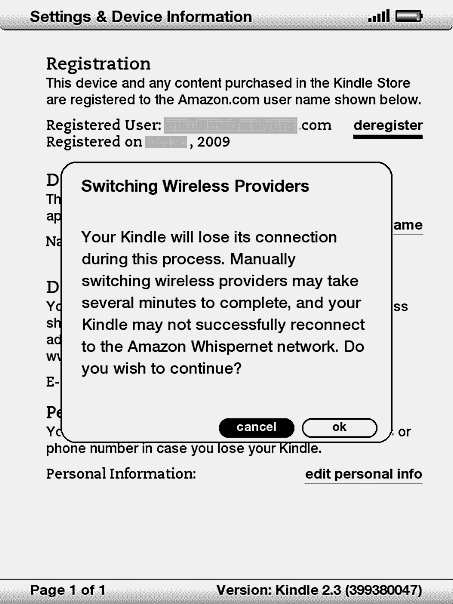
First, turn on the wireless connection of your Kindle, then press “Home”, “Menu”, “Setting” and in that screen, press “311” (yap, that’s the magic number) from the Kindle keyboard. Then mysteriously, an application pops up and will warn you about this command, just select “OK”, and then you will see a message – “Scanning for available wireless providers …”.

About a minute later, a full list of network services providers (with both 2G and 3G connections) will be displayed. Just pick the one you want and that’s it !!. Try “Menu” again, and you shall see the “3G” symbol next to the signal bars, instead of previously the “GPRS“.

Please note that it does not matter whether you have a data plan with the network company to make this work, looks like Amazon already has a deal with the one listed …

Now my Kindle not only synchronize faster, it also works a lot faster when browsing the Kindle Store.

Enjoy !!

Update : If you’re using a Kindle 3 and cannot access to the numeric entry field – try pressing Alt-E, Alt-Q, Alt-Q … hope it helps.

What does a CIO do ?

There is one very interesting discussion in LinkedIn CIO Forum about “If you had one sentence to describe what you did as CIO – what would it be?”

As usual, there are some politically correct answers:

  • “The organization’s technology evangelist and leader who championed the business goals and objectives.”
  • “CIO is business leader who relentlessly delivers technology in support of business objectives, all while continuously seeking to drive overall costs down”
  • “Improve an organization’s IT Alignment, Architecture, Agility and Ability to enhance the organization’s bottom line. “

There are also some practical answers, such as:

  • “High tech solutions, bottom line results.”
  • “Ascertain organization’s footprint from a bottom-line standpoint. Streamline operations with intent to cut cost and focus on reliability. Deliver practical technologies in support of the organization’s goals.”

And there are some answers I like a lot:

  • “Provide what they need before they know they need it.”
  • “Take information technology where no information technology has gone before.”
  • “On time, on spec, on budget, no bloodshed.”
  • “Deliver technology solutions so advanced that they are indistinguishable from magic.”

What’s your take ?

Merry Christmas and Happy New Year !!